Resolution for Bus Servo Control Crashes During Action Group Downloads
1. Problem Description
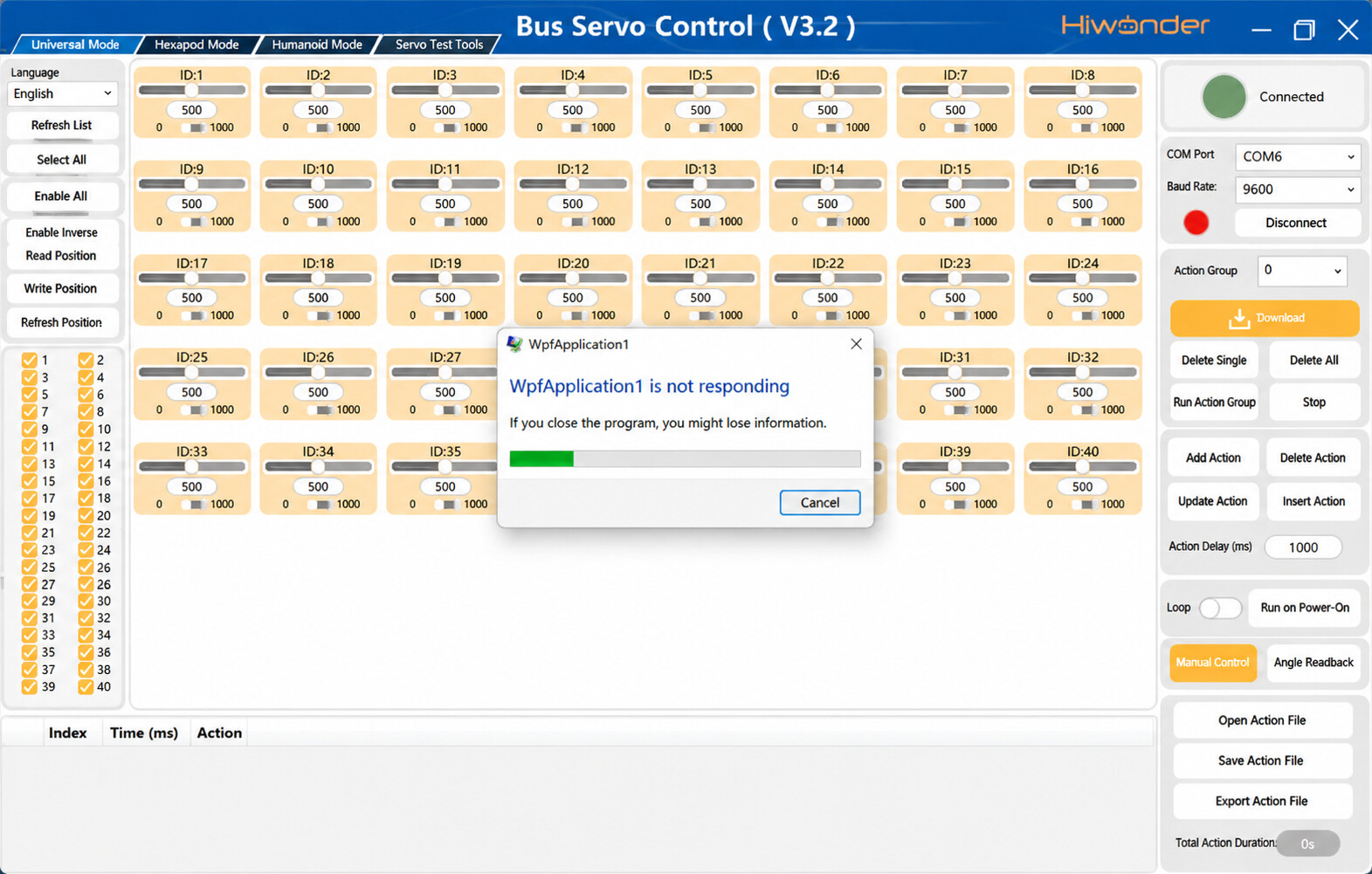
When downloading action groups using the Bus Servo Control PC software, issues such as software freezes and unexpected crashes may occur, as shown in the figure below.
2. Solution
To resolve crashes and freezes, the exact number of servos connected to the device must be selected within the Bus Servo Control software. The number of selected servos in the PC software must match the actual number of hardware servos connected to the system before proceeding with the action group download.
2.1 Determining the Number of Serial Bus Servos
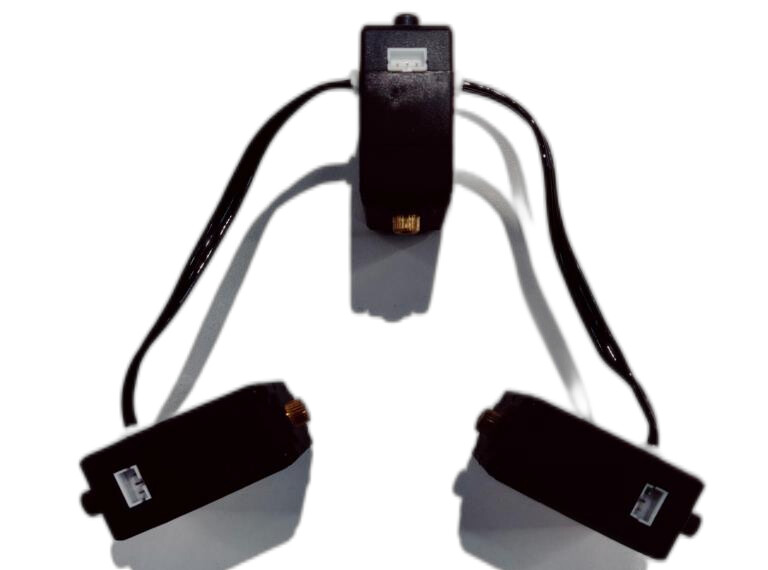
Record the total count of serial bus servos on the device. For a setup featuring three serial bus servos, the servo count must be set to three as illustrated in the figure above.
2.2 Action Group Download Procedure
2.2.1 Hardware Connection
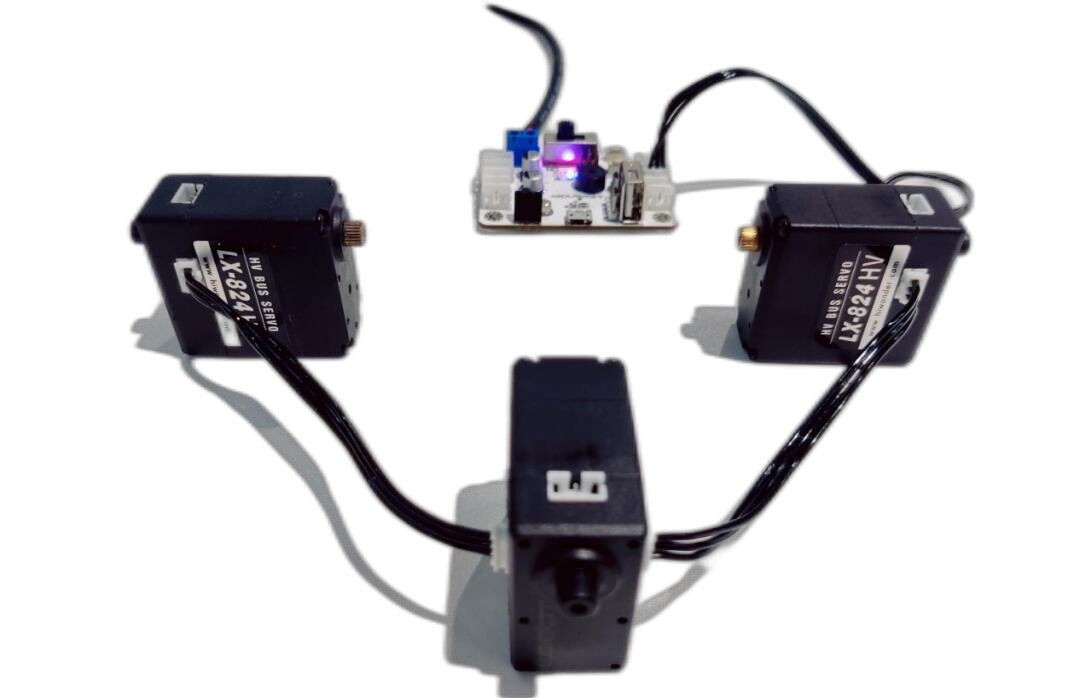
Connect the serial bus servos to any available serial bus servo ports on the bus servo controller, as shown in the figure above.
2.2.2 Action Group Download
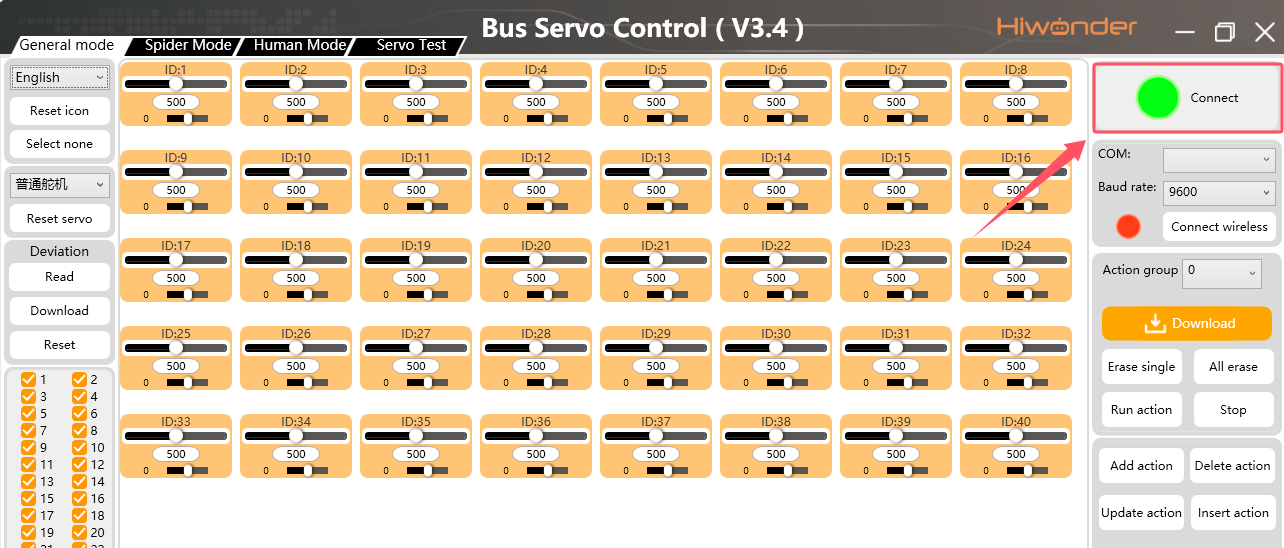
- Connect the servo controller using a data cable. Opening the PC software automatically establishes a connection with the servos. First, confirm whether the servos are connected properly. If the connection is successful, the indicator light in the upper-right corner turns green and displays a wired connection status message Connect, as shown in the figure above.
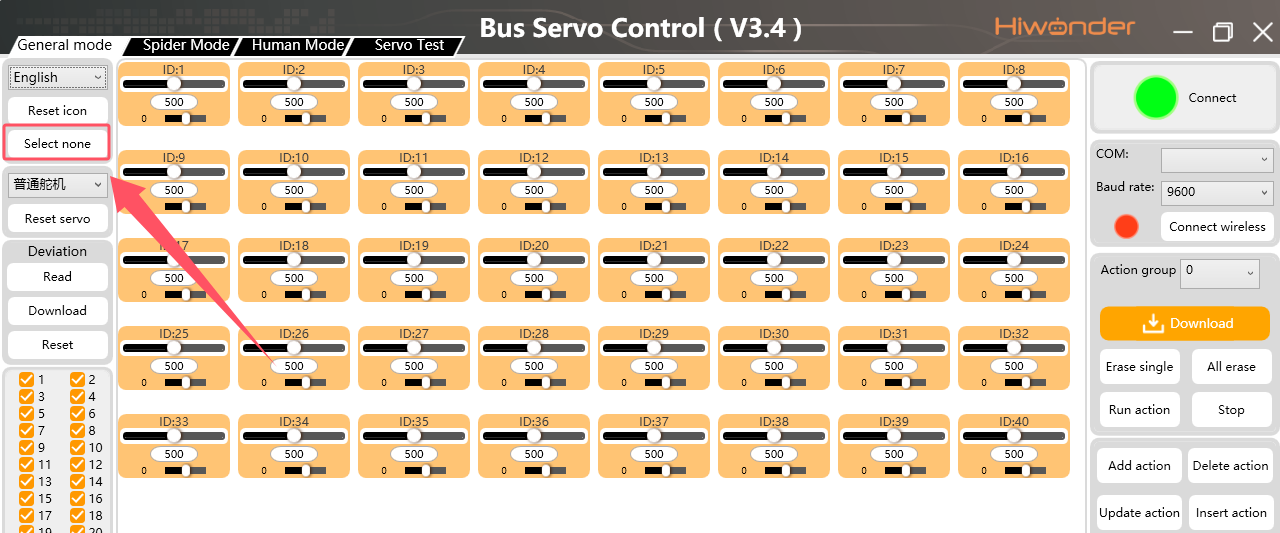
- Click the Select none button in the left toolbar area to clear all servo selections, as shown in figure above.
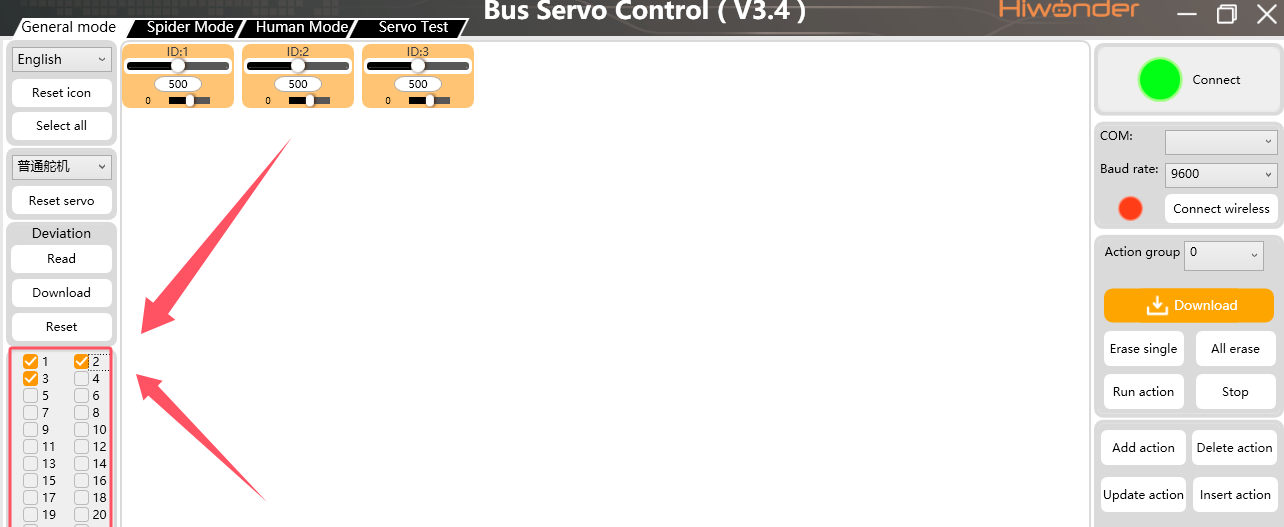
- Select the corresponding servos in numerical order based on the actual servo count of the device. For instance, check boxes 1, 2, and 3 if the device contains three servos as shown in the figure above.
Note that checking the servos sequentially, starting from 1, is strictly required.
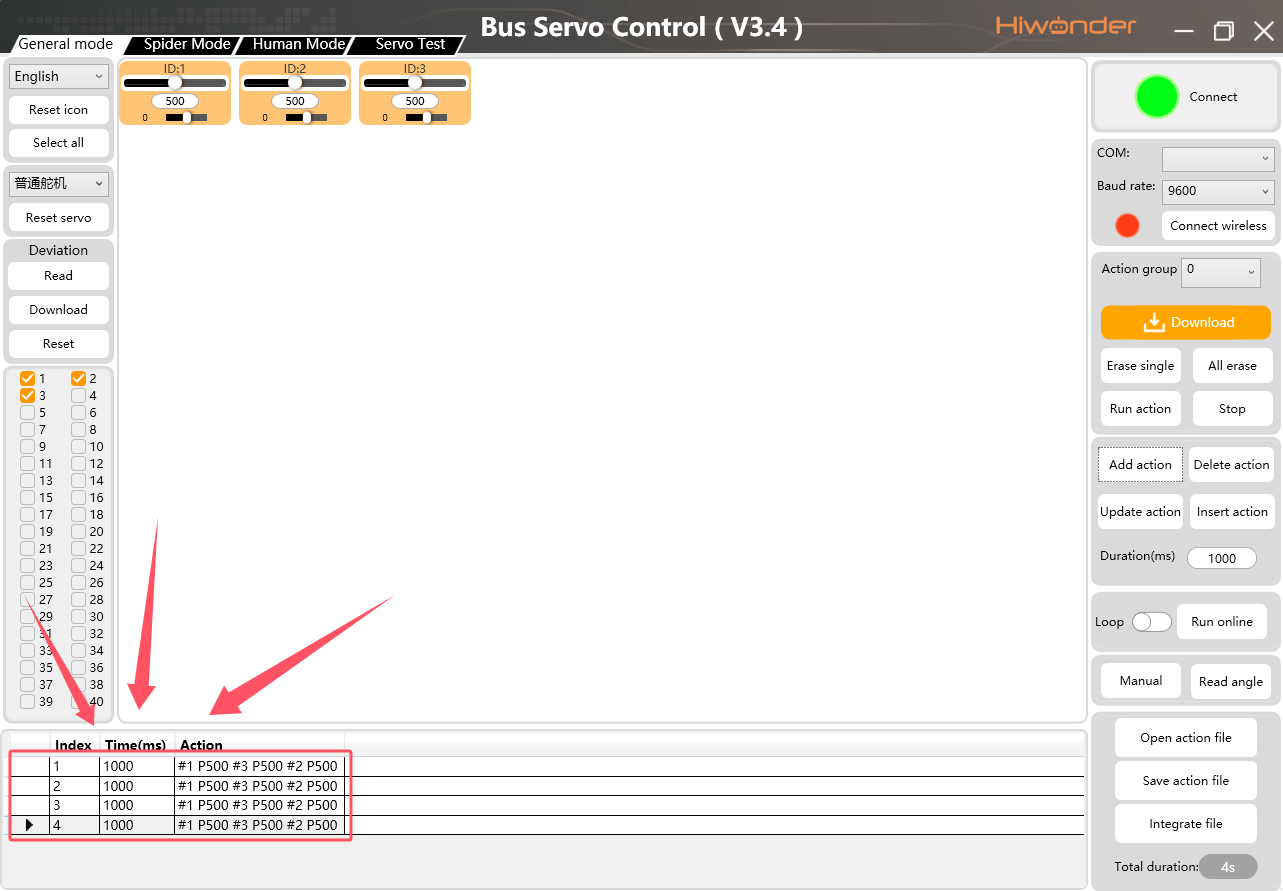
- Add the required actions. The details of each action group will appear in the lower list once the addition is complete, as shown in the figure above.
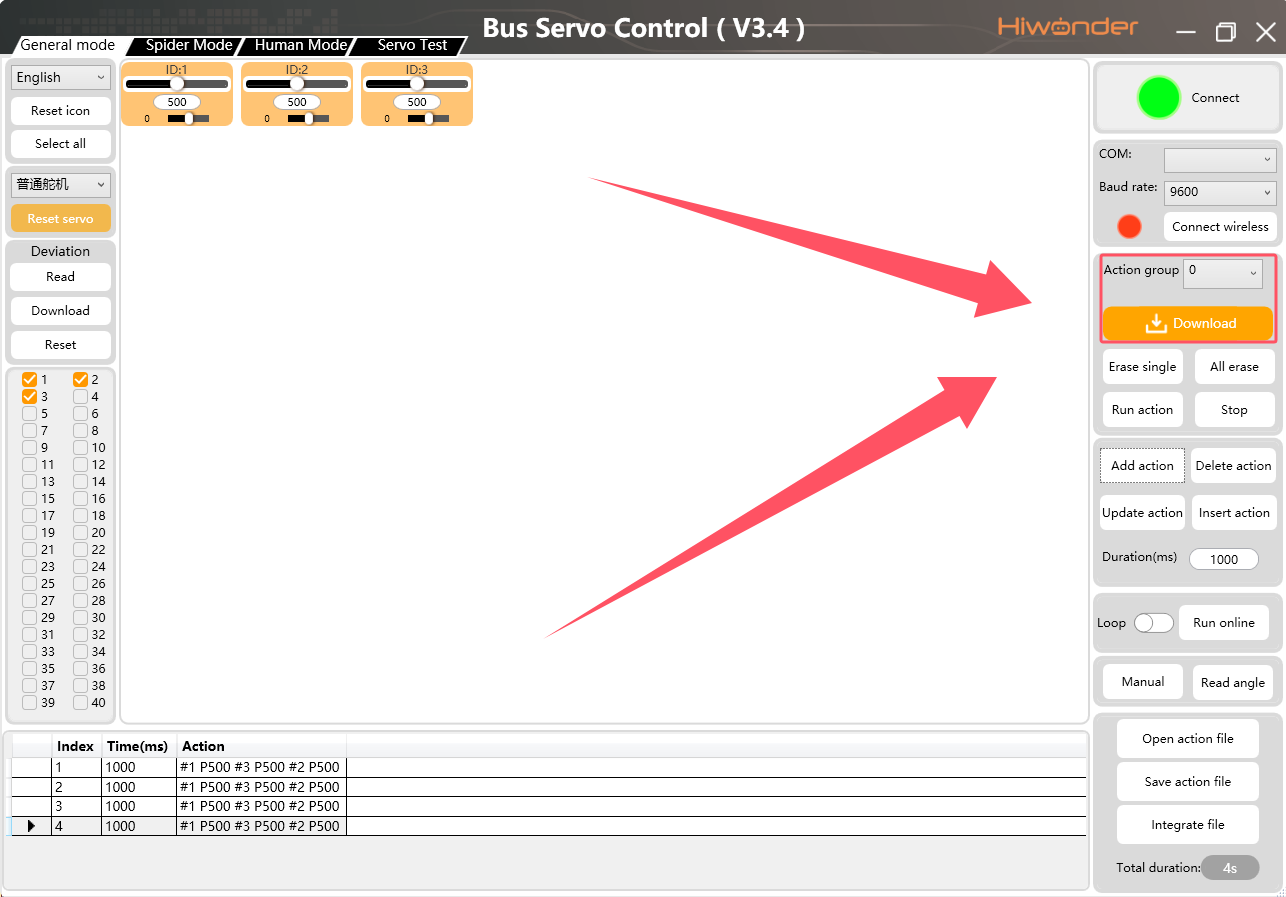
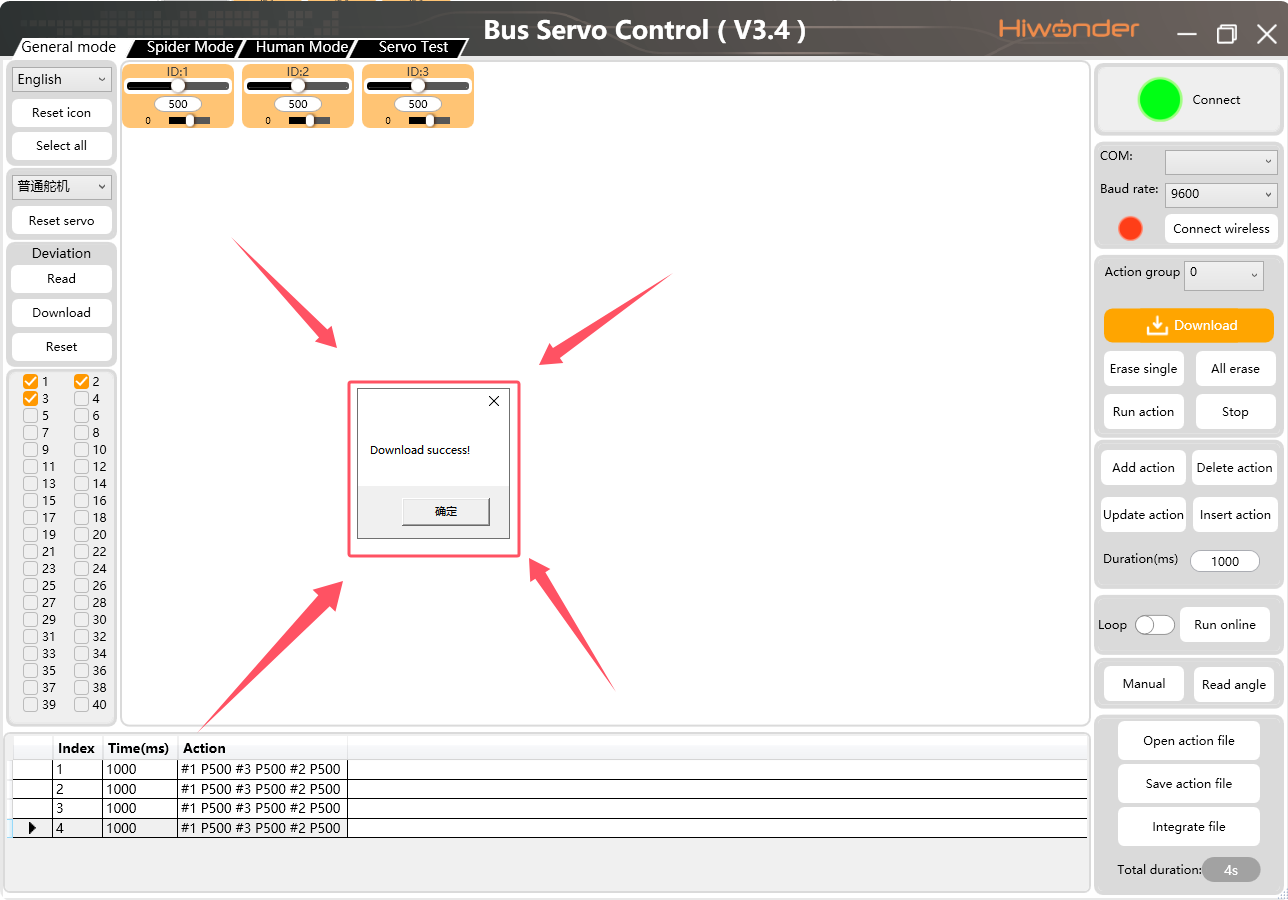
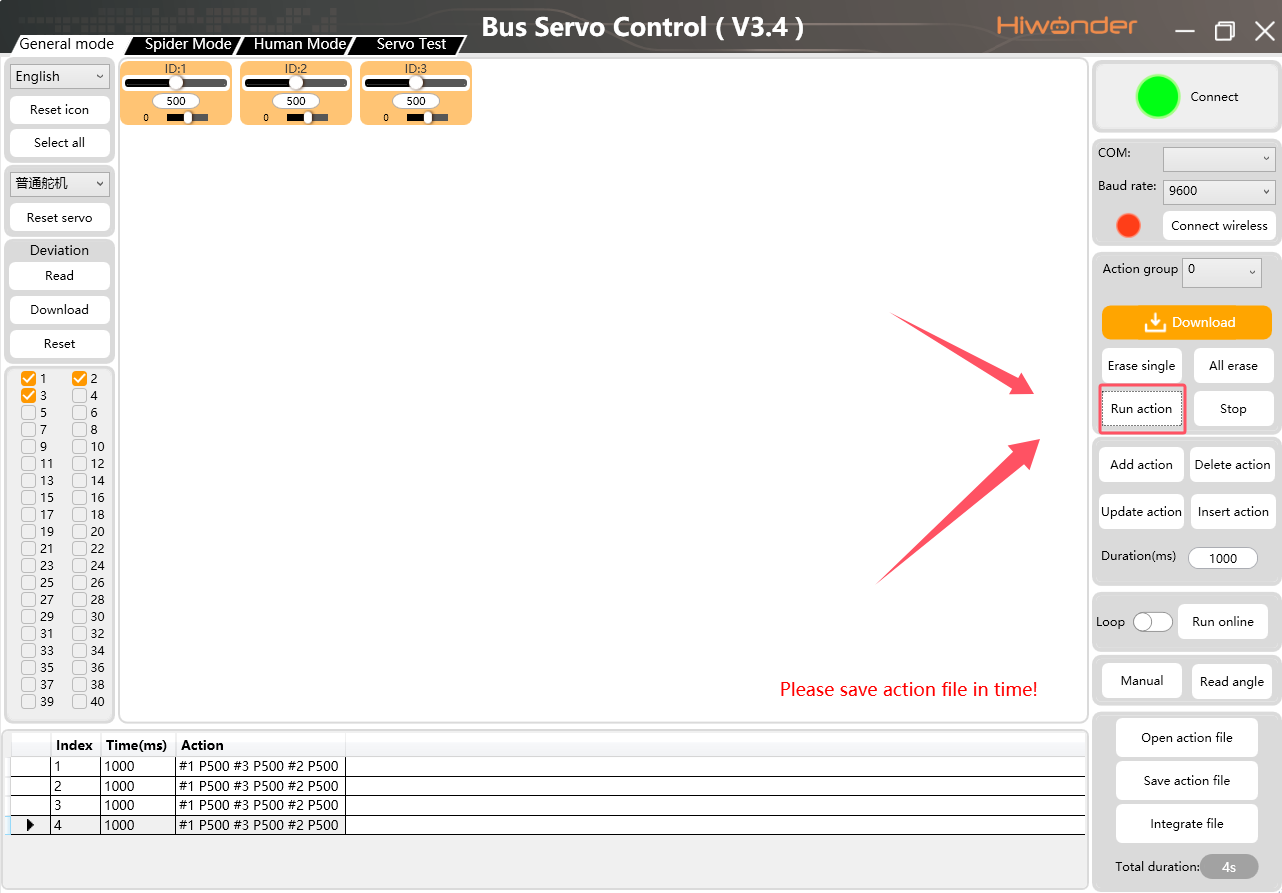
- Download the action group. Select the target action group number in the rightmost operation column of the software after adding the actions, where the default is group 0. Click Download after completing the selection as shown in the figure above. A pop-up window indicating that the download is complete will appear as shown in the first figure below. The action group download is now finished. Click the Run action button to observe the operational trajectory of the newly downloaded action group, as shown in the second figure below.
3. Problem Analysis
When the servo ID range selected in the PC software does not match the actual servo IDs on the physical device, the software fails to read or download data for the non-existent servo IDs. This mismatch leads to application freezes and unexpected crashes. Selecting the exact servo ID range corresponding to the device configuration before adding actions fully resolves this issue.
4. Notes
-
Check whether the data cable functions properly if the PC software fails to connect to the serial bus servos.
-
This tutorial applies exclusively to serial bus servos and cannot be used for PWM servos.
-
Download the action groups in strict accordance with the sequence outlined in this tutorial.