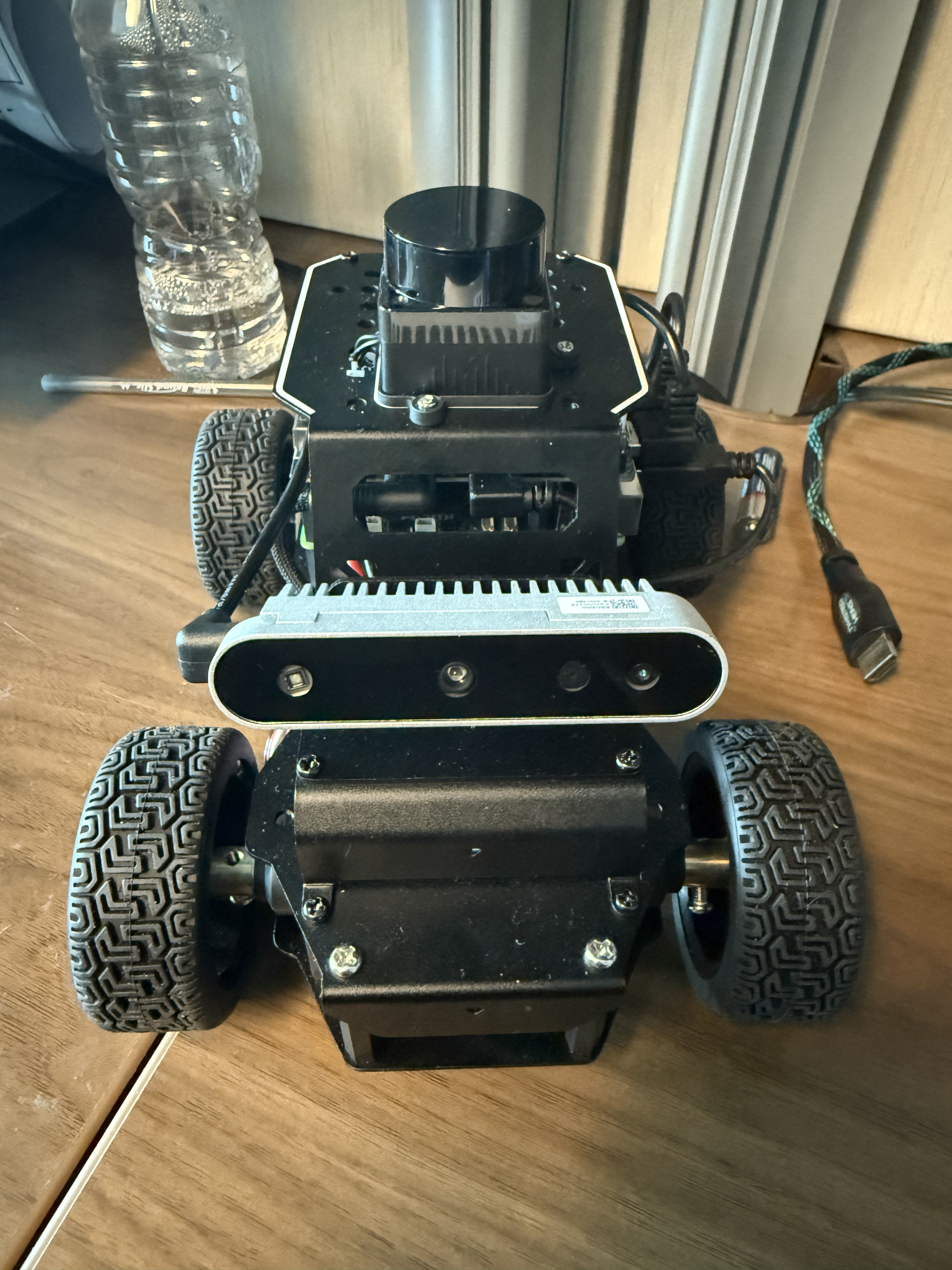
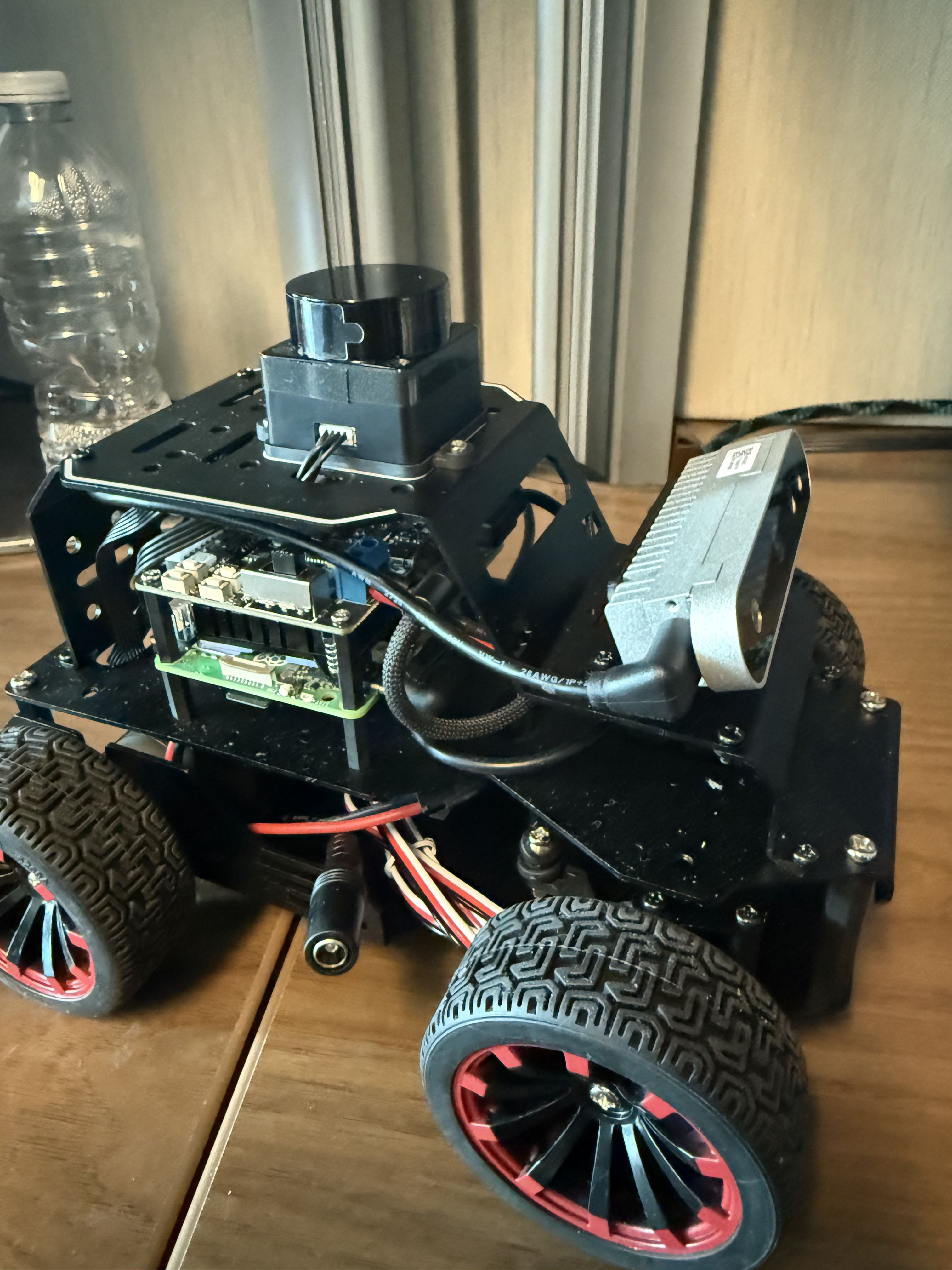
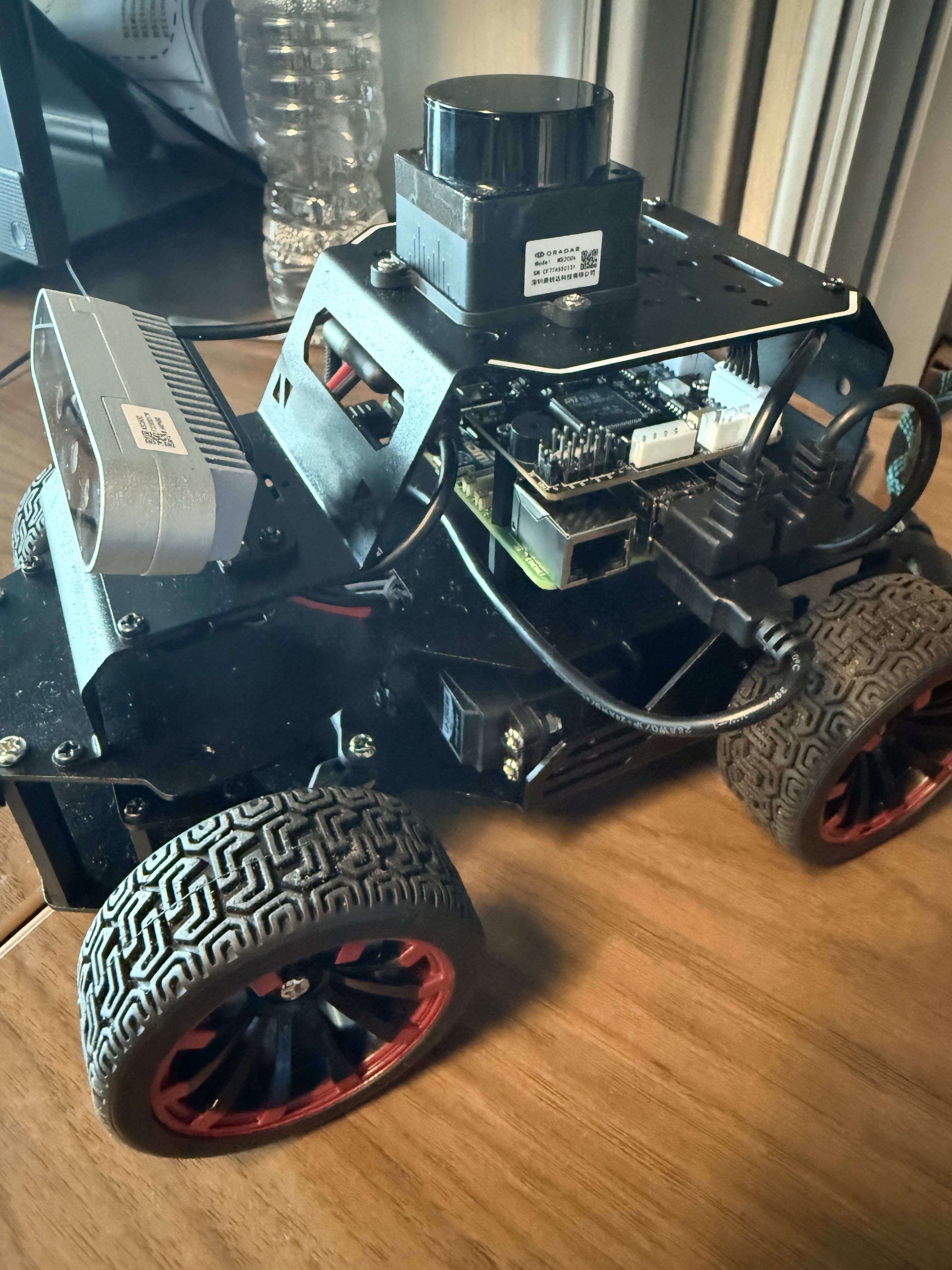
Official support staff are being brought in to help with this camera issue. If you still need my help, reply here and @ me. @Hiwonder_Scarlett
Hi there,
Regarding the issue you mentioned, our engineers are currently working on it urgently, and we will get back to you with an update as soon as possible.
Thank you very much for your patience and understanding!
Hi there,
Thank you for reaching out to Hiwonder Support. Regarding the depth camera issue you encountered, please try the following troubleshooting steps:
1. Camera Restart & Feed Verification
To restart the camera node, run:
~/.stop_ros.sh
ros2 launch peripherals depth_camera.launch.py
After rebooting the robot, please connect via the mobile App or VNC, launch any function that features a video stream, and screen-record the session. This will help us verify whether the camera feed automatically drops without manually stopping the service.
2. Resolving uvc_open: Busy Error
The uvc_open: Busy error typically occurs when the USB device is already occupied by another running process. To resolve this, run ~/.stop_ros.sh first to clear active background nodes before launching the camera again.
3. Recommended USB Port
We recommend plugging the camera into USB Port 2 on the Raspberry Pi for optimal stability.
4. Diagnostics & Isolation Steps
We do not have a dedicated tool to communicate directly with the Angstrong SDK. However, you can isolate software and hardware issues as follows:
-
Software Isolation: To restart all hardware and software components from scratch and check for camera error logs in the terminal, execute:
~/.stop_ros.sh
ros2 launch bringup bringup.launch.py
-
Hardware Isolation: The simplest way to test the camera hardware is to plug it directly into a Windows PC and check if the video feed displays properly. You can also follow our official tutorial for further camera hardware verification:
 [https://docs.hiwonder.com/projects/MentorPi/en/latest/docs/6.depth_camera_basic_lesson.html\]
Please let us know if the issue persists after trying these steps!
Hi @Hiwonder_Scarlett, thanks for the guidance. I did a full Pi reboot and confirmed:
- The systemd service
start_node.service starts cleanly on boot
- Bringup launches with correct env vars (LIDAR_TYPE=MS200, DEPTH_CAMERA_TYPE=ascamera, MACHINE_TYPE=MentorPi_Mecanum, need_compile=False — all set via ~/.zshrc → ~/ros2_ws/.robotrc → ~/ros2_ws/.typerc)
- LD_LIBRARY_PATH for the Angstrong SDK is set correctly
- Only one ascamera_node runs (spawned by bringup, PPID=bringup PID), no competing instances
- No processes are holding the USB device from a previous session
Even in this clean state, the camera does not publish frames. ros2 topic hz /ascamera/camera_publisher/rgb0/image reports ‘does not appear to be published yet.’ The ascamera_node’s log file is empty, which suggests the driver may be stuck without emitting logs.
The USB device is enumerated correctly (VID 3482, PID 6723). Given we’ve eliminated all software-side variables, this seems to be either a driver-level hang or a hardware issue with this specific camera.
Could you either:
- Confirm this is a known issue and provide a driver update or reset procedure, or
- Help arrange a camera replacement if the hardware is suspected?
I can also test the camera on a Linux computer to isolate hardware vs. software if you think that would help.
Official support staff are being brought in to help with the driver/reset procedure or possible camera replacement. If you still need my help, reply here and @ me. @Hiwonder_Scarlett
Hi there,
Thank you for providing the detailed update.
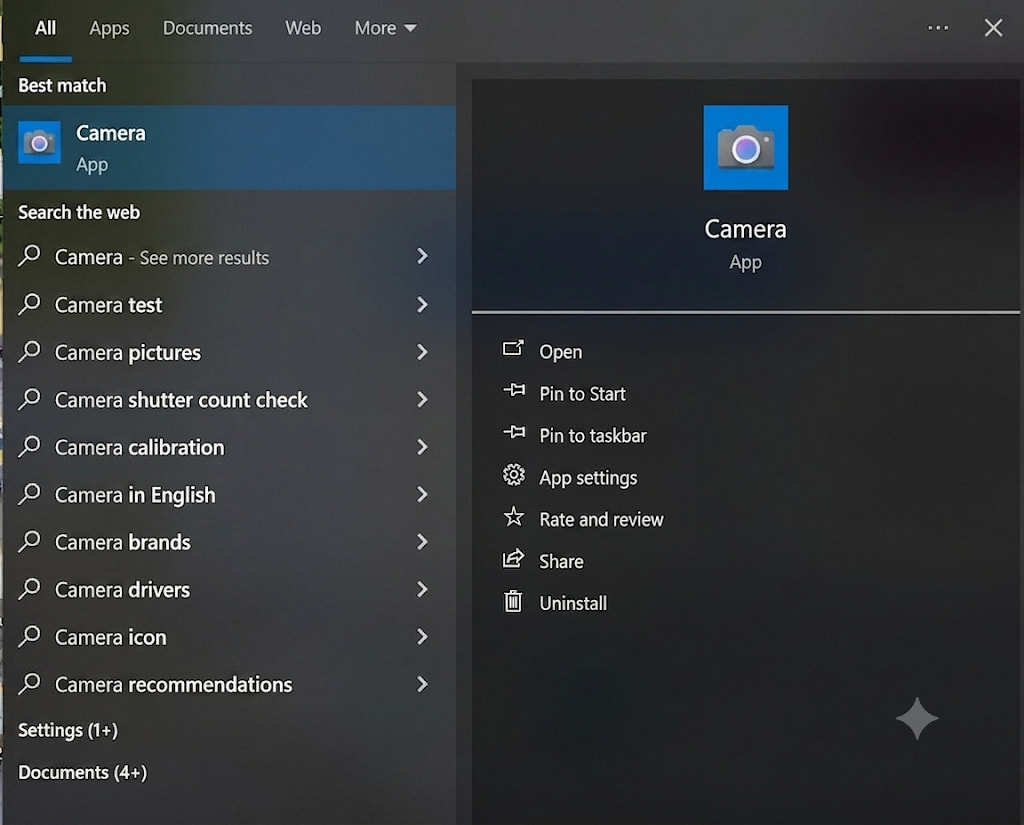
Have you tried plugging the camera directly into a computer to see if it displays a video feed using the built-in camera application? Testing it as a regular PC peripheral will help us rule out any hardware issues with the camera itself first.
Please follow the steps below and record a short testing video so our engineers can evaluate the result:
-
Connect the depth camera directly to your computer via USB.
-
Open your computer’s built-in Camera app (e.g., Camera on Windows or Photo Booth on Mac) and check whether the camera works properly.
Replacement Process
If the camera turns out to be hardware-damaged and needs to be replaced, please provide your order number for the robot purchase. This will allow us to pull up your order information and proceed with the replacement process for you.
Status Update
Additionally, our engineers are currently working on the new details you provided and preparing a complete solution, which we will share with you shortly. In the meantime, please try the hardware test above.
Looking forward to your reply!
Hi there,
Thank you for the update. To help us troubleshoot the issue faster and determine the exact status of your robot, we would appreciate it if you could test the camera using the method outlined below. If you can provide a short video or photos of the test, that would be extremely helpful!
Important Notes Regarding the Camera & Topics:
-
When bringup starts the camera, if there is no active publisher node running, ros2 topic hz may report no data to avoid unnecessary memory consumption.
-
Checking a single topic’s publishing status (hz) alone cannot determine whether the camera is faulty, as topic names can vary across different programs. Testing whether the camera can display a video feed in the Mobile App or other functions provides a much clearer diagnosis.
Recommended Testing Steps:
-
Reboot the Robot: Power off and reboot the robot completely.
-
Test via Mobile App: Open the Mobile App, connect to the robot, and go to the remote control or function interface to check for a video feed.
-
If there IS a video feed: Connect via VNC simultaneously to inspect the topic publishing rate (hz) and system status.
-
If there is NO video feed: Unplug the camera from the robot and connect it directly to a computer. Open your computer’s built-in Camera app (or follow the tutorial configuration) to see if a video feed appears.
This test will allow us to immediately determine whether this is a hardware failure or a software/topic configuration issue.
Looking forward to your test results!
Update — we found a workaround. The mobile app and web_video_server both get video from the camera fine (via http://<pi-ip>:8080/stream?topic=/ascamera/camera_publisher/rgb0/image). But direct ROS 2 subscription to the same topic returns 0 frames even with matching QoS (RELIABLE + VOLATILE). We tested 4 different QoS profiles — none received frames despite subscription count showing correctly.
Our fix: consume the HTTP MJPEG stream from web_video_server using OpenCV. This works reliably and is what the mobile app does too. Not sure if there’s an underlying bug in the ascamera_node’s direct topic delivery that we should still investigate, or if this is expected behavior — but we’re unblocked for our project either way. Thanks for the pointer about lazy publishing that led us to look at web_video_server as an alternative path.
The HTTP MJPEG workaround is reasonable, but HTTP-only access is not the intended behavior. The official MentorPi depth-camera procedure uses rqt_image_view and RViz to consume the camera’s ROS 2 image output directly, so a normal ROS 2 subscriber should also receive frames.
Because web_video_server can stream the same topic, this does not yet confirm a general ascamera_node publishing bug. Please make the following comparison:
- Keep the MJPEG stream open and test the direct ROS 2 subscriber simultaneously.
- Run
rqt_image_view or RViz inside the same MentorPi Docker container and select /ascamera/camera_publisher/rgb0/image.
- Run your minimal subscriber in that same container with the same sourced ROS environment as
web_video_server.
- Capture
ros2 topic info -v /ascamera/camera_publisher/rgb0/image while both subscribers are active.
- Confirm whether the custom subscriber runs inside the container, on the Pi host, or on another computer.
If the official ROS viewers work but the custom subscriber does not, the investigation should focus on the subscriber, ROS middleware, or container/network context. If the official viewers also receive no frames while web_video_server continues streaming, that is a reproducible discrepancy for engineering review. You can continue using MJPEG as the project workaround, but direct ROS 2 delivery is still expected to work.
If this reply was helpful, you can mark it as the solution using the button below.
Confirmed — you were right. When we ran our custom subscriber with the SAME environment as web_video_server (using /bin/zsh -c 'source ~/.zshrc && python3 test_subscriber.py' as the ubuntu user inside the container), the direct ROS 2 subscription works reliably:
- DEFAULT (RELIABLE + VOLATILE): 150 frames in 15s
- SENSOR_DATA (BEST_EFFORT + VOLATILE): 133 frames in 15s
Our earlier failures were because we ran subscribers via docker exec bash -c 'source /opt/ros/humble/setup.bash && python3 ...', which missed the workspace overlays and env vars that .zshrc sets. That difference broke DDS discovery / delivery even though our subscriber’s QoS matched.
Thank you — this is a really useful lesson for anyone running custom ROS 2 nodes on the MentorPi. The direct topic path is expected to work, but you MUST use the full bringup environment (zsh + .zshrc) or discovery/delivery silently fails. There’s no ascamera bug — this is documentation-worthy though, since a naive source /opt/ros/humble/setup.bash shell doesn’t reveal the issue.
Marking this thread as solved.
Thank you for confirming the root cause and documenting the working command. We are glad the direct ROS 2 subscription is now reliable, and your environment finding will be valuable for other MentorPi users.
Using this template is recommended — you may also edit it freely, but you must fully describe your product and the problem (at least: product name, version, and problem description).