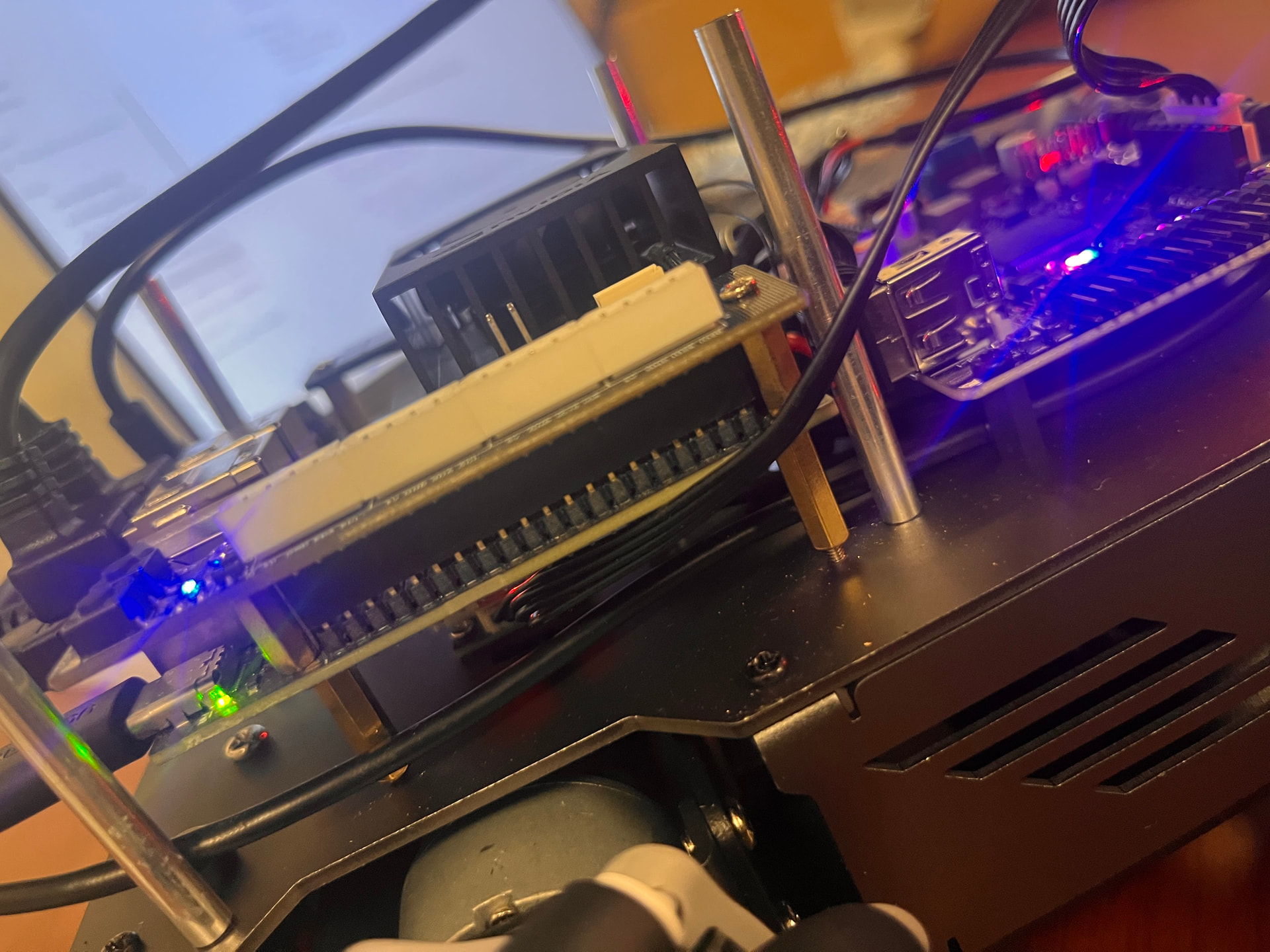
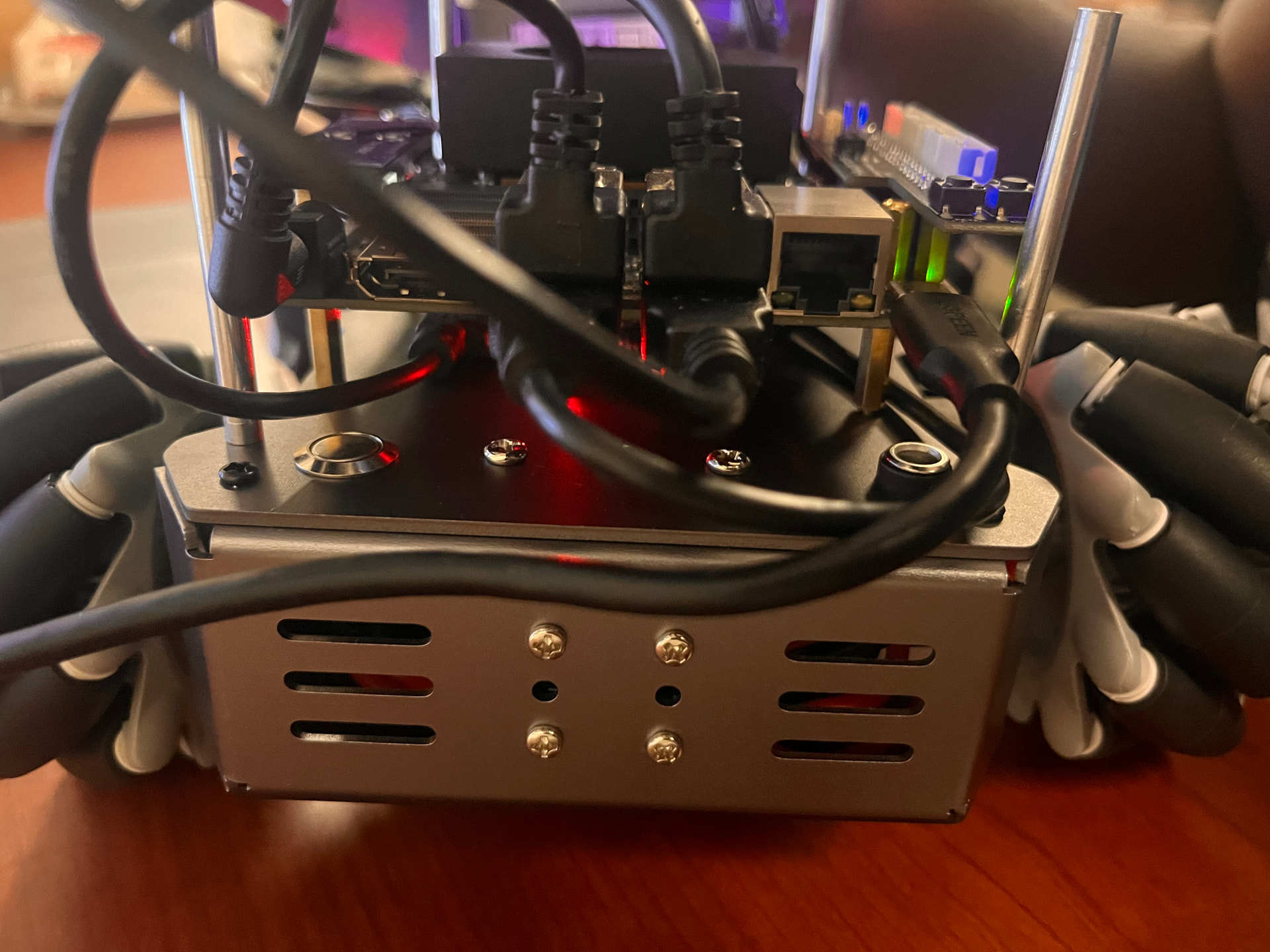
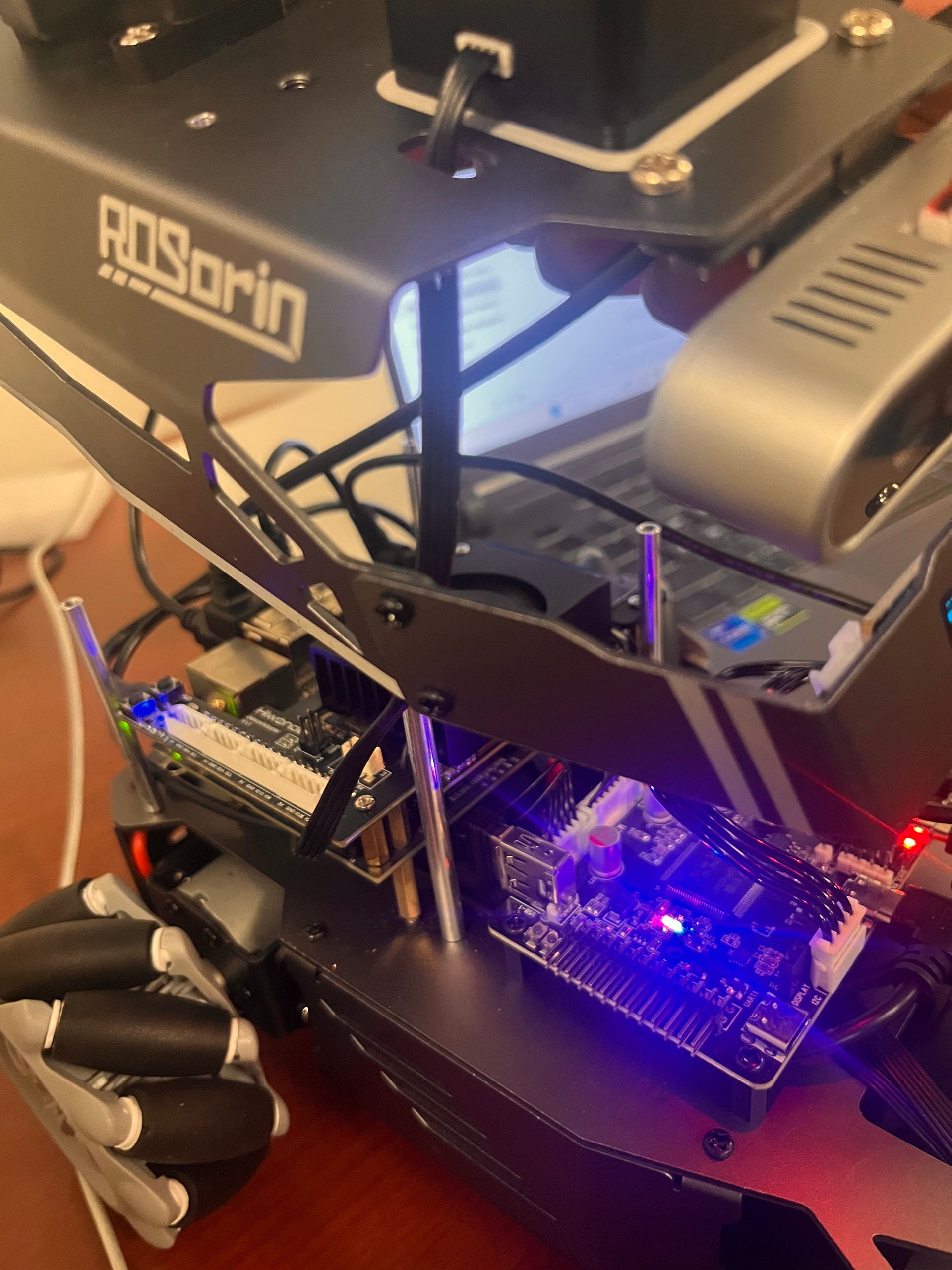
I tried it and here is what I got back:
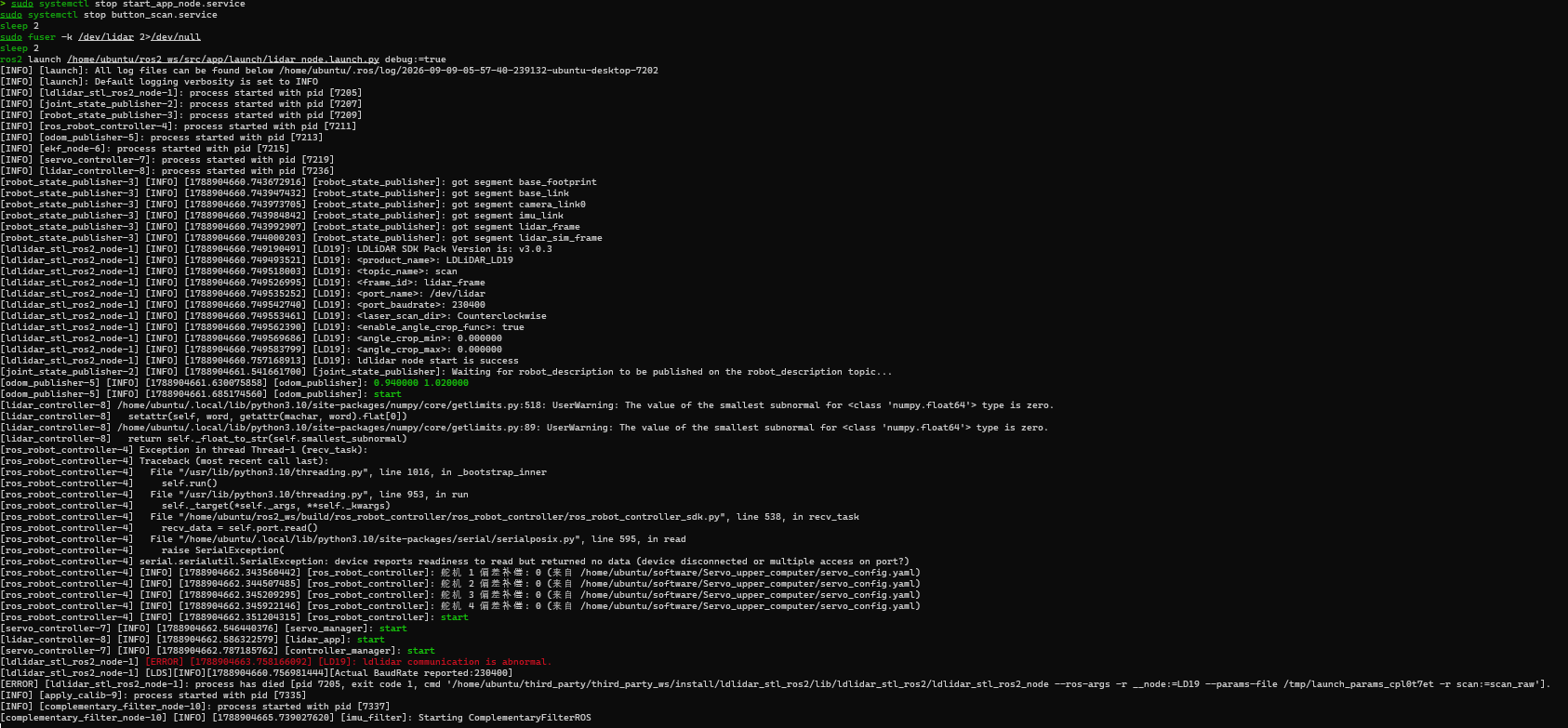
sudo systemctl stop start_app_node.service
sudo systemctl stop button_scan.service
sleep 2
sudo fuser -k /dev/lidar 2>/dev/null
sleep 2
ros2 launch /home/ubuntu/ros2_ws/src/app/launch/lidar_node.launch.py debug:=true
[INFO] [launch]: All log files can be found below /home/ubuntu/.ros/log/2026-09-09-05-57-40-239132-ubuntu-desktop-7202
[INFO] [launch]: Default logging verbosity is set to INFO
INFO\] \[ldlidar_stl_ros2_node-1\]: process started with pid \[7205
INFO\] \[joint_state_publisher-2\]: process started with pid \[7207
INFO\] \[robot_state_publisher-3\]: process started with pid \[7209
INFO\] \[ros_robot_controller-4\]: process started with pid \[7211
INFO\] \[odom_publisher-5\]: process started with pid \[7213
INFO\] \[ekf_node-6\]: process started with pid \[7215
INFO\] \[servo_controller-7\]: process started with pid \[7219
INFO\] \[lidar_controller-8\]: process started with pid \[7236
[robot_state_publisher-3] [INFO] [1788904660.743672916] [robot_state_publisher]: got segment base_footprint
[robot_state_publisher-3] [INFO] [1788904660.743947432] [robot_state_publisher]: got segment base_link
[robot_state_publisher-3] [INFO] [1788904660.743973705] [robot_state_publisher]: got segment camera_link0
[robot_state_publisher-3] [INFO] [1788904660.743984842] [robot_state_publisher]: got segment imu_link
[robot_state_publisher-3] [INFO] [1788904660.743992907] [robot_state_publisher]: got segment lidar_frame
[robot_state_publisher-3] [INFO] [1788904660.744000203] [robot_state_publisher]: got segment lidar_sim_frame
[ldlidar_stl_ros2_node-1] [INFO] [1788904660.749190491] [LD19]: LDLiDAR SDK Pack Version is: v3.0.3
[ldlidar_stl_ros2_node-1] [INFO] [1788904660.749493521] [LD19]: <product_name>: LDLiDAR_LD19
[ldlidar_stl_ros2_node-1] [INFO] [1788904660.749518003] [LD19]: <topic_name>: scan
[ldlidar_stl_ros2_node-1] [INFO] [1788904660.749526995] [LD19]: <frame_id>: lidar_frame
[ldlidar_stl_ros2_node-1] [INFO] [1788904660.749535252] [LD19]: <port_name>: /dev/lidar
[ldlidar_stl_ros2_node-1] [INFO] [1788904660.749542740] [LD19]: <port_baudrate>: 230400
[ldlidar_stl_ros2_node-1] [INFO] [1788904660.749553461] [LD19]: <laser_scan_dir>: Counterclockwise
[ldlidar_stl_ros2_node-1] [INFO] [1788904660.749562390] [LD19]: <enable_angle_crop_func>: true
[ldlidar_stl_ros2_node-1] [INFO] [1788904660.749569686] [LD19]: <angle_crop_min>: 0.000000
[ldlidar_stl_ros2_node-1] [INFO] [1788904660.749583799] [LD19]: <angle_crop_max>: 0.000000
[ldlidar_stl_ros2_node-1] [INFO] [1788904660.757168913] [LD19]: ldlidar node start is success
[joint_state_publisher-2] [INFO] [1788904661.541661700] [joint_state_publisher]: Waiting for robot_description to be published on the robot_description topic…
[odom_publisher-5] [INFO] [1788904661.630075858] [odom_publisher]: 0.940000 1.020000
[odom_publisher-5] [INFO] [1788904661.685174560] [odom_publisher]: start
[lidar_controller-8] /home/ubuntu/.local/lib/python3.10/site-packages/numpy/core/getlimits.py:518: UserWarning: The value of the smallest subnormal for <class ‘numpy.float64’> type is zero.
[lidar_controller-8] setattr(self, word, getattr(machar, word).flat[0])
[lidar_controller-8] /home/ubuntu/.local/lib/python3.10/site-packages/numpy/core/getlimits.py:89: UserWarning: The value of the smallest subnormal for <class ‘numpy.float64’> type is zero.
[lidar_controller-8] return self._float_to_str(self.smallest_subnormal)
[ros_robot_controller-4] Exception in thread Thread-1 (recv_task):
[ros_robot_controller-4] Traceback (most recent call last):
[ros_robot_controller-4] File “/usr/lib/python3.10/threading.py”, line 1016, in _bootstrap_inner
[ros_robot_controller-4] self.run()
[ros_robot_controller-4] File “/usr/lib/python3.10/threading.py”, line 953, in run
[ros_robot_controller-4] self._target(*self._args, **self._kwargs)
[ros_robot_controller-4] File “/home/ubuntu/ros2_ws/build/ros_robot_controller/ros_robot_controller/ros_robot_controller_sdk.py”, line 538, in recv_task
[ros_robot_controller-4] recv_data = self.port.read()
[ros_robot_controller-4] File “/home/ubuntu/.local/lib/python3.10/site-packages/serial/serialposix.py”, line 595, in read
[ros_robot_controller-4] raise SerialException(
[ros_robot_controller-4] serial.serialutil.SerialException: device reports readiness to read but returned no data (device disconnected or multiple access on port?)
[ros_robot_controller-4] [INFO] [1788904662.343560442] [ros_robot_controller]: 舵机 1 偏差补偿: 0 (来自 /home/ubuntu/software/Servo_upper_computer/servo_config.yaml)
[ros_robot_controller-4] [INFO] [1788904662.344507485] [ros_robot_controller]: 舵机 2 偏差补偿: 0 (来自 /home/ubuntu/software/Servo_upper_computer/servo_config.yaml)
[ros_robot_controller-4] [INFO] [1788904662.345209295] [ros_robot_controller]: 舵机 3 偏差补偿: 0 (来自 /home/ubuntu/software/Servo_upper_computer/servo_config.yaml)
[ros_robot_controller-4] [INFO] [1788904662.345922146] [ros_robot_controller]: 舵机 4 偏差补偿: 0 (来自 /home/ubuntu/software/Servo_upper_computer/servo_config.yaml)
[ros_robot_controller-4] [INFO] [1788904662.351204315] [ros_robot_controller]: start
[servo_controller-7] [INFO] [1788904662.546440376] [servo_manager]: start
[lidar_controller-8] [INFO] [1788904662.586322579] [lidar_app]: start
[servo_controller-7] [INFO] [1788904662.787185762] [controller_manager]: start
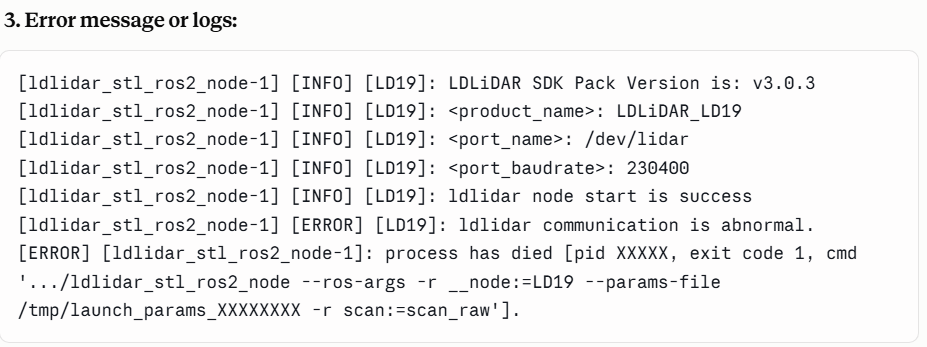
[ldlidar_stl_ros2_node-1] [ERROR] [1788904663.758166092] [LD19]: ldlidar communication is abnormal.
ldlidar_stl_ros2_node-1\] \[LDS\]\[INFO\]\[1788904660.756981444\]\[Actual BaudRate reported:230400
[ERROR] [ldlidar_stl_ros2_node-1]: process has died [pid 7205, exit code 1, cmd ‘/home/ubuntu/third_party/third_party_ws/install/ldlidar_stl_ros2/lib/ldlidar_stl_ros2/ldlidar_stl_ros2_node --ros-args -r __node:=LD19 --params-file /tmp/launch_params_cpl0t7et -r scan:=scan_raw’].
INFO\] \[apply_calib-9\]: process started with pid \[7335
INFO\] \[complementary_filter_node-10\]: process started with pid \[7337
[complementary_filter_node-10] [INFO] [1788904665.739027620] [imu_filter]: Starting ComplementaryFilterROS
it still gives me the same error