Custom Feature Auto-Start Configuration for ArmPi FPV
1. Introduction
This section provides a technical guide on configuring a custom application to automatically launch upon system boot. This capability is an advanced modification rather than a native system feature. It is intended solely for extended learning and development, and operational performance depends entirely on the final implementation.
2. Configuration Method
The color tracking feature program is used as an example to demonstrate the auto-start configuration. The path of this program is /home/ubuntu/Ai_FPV/ColorTracking.py.
The configuration process consists of two steps: writing the script program and configuring the auto-start settings.
2.1 Writing the Script Program
To execute color tracking, the commands sudo systemctl stop start_node.service and sudo python3 /home/ubuntu/Ai_FPV/ColorTracking.py must be entered in the terminal. A script program can be written to automate the execution of these commands instead of manually entering them into the terminal. The script program is named main.py, and the detailed steps are described below.
The script program can be named arbitrarily without any restrictions.
-
Power on ArmPi FPV, and then establish a remote connection to the system desktop via NoMachine.
-
Click the Applications icon in the lower-left corner, and then select Terminal Emulator from the pop-up interface to open the command-line terminal.
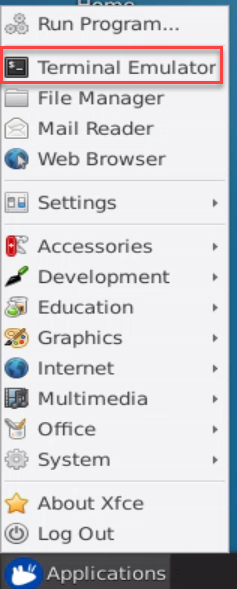
- Enter the command
vim main.pyto edit the program, copy the program below, and press the Shift and Insert keys simultaneously to paste the code. Once completed, press Esc and enter:wqto save and exit.
vim main.py

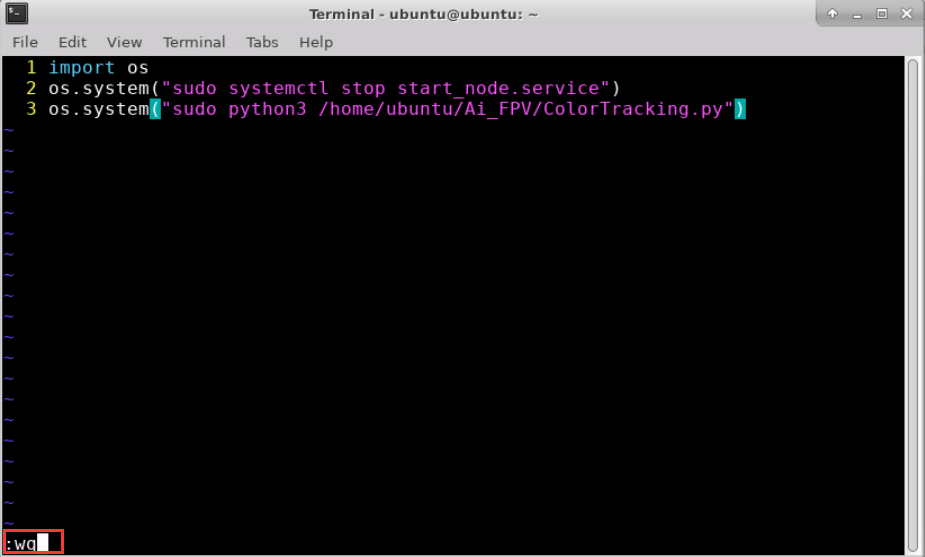
import os
os.system("sudo systemctl stop start_node.service")
os.system("sudo python3 /home/ubuntu/Ai_FPV/ColorTracking.py")
- Enter the command
sudo python3 main.pyand press Enter to verify the execution of the script program.
sudo python3 main.py

-
After a short wait, the program will start running, and the robotic arm will move to track the red color block.
-
After verification, press Ctrl + C to close the program.
2.2 Configuring the Auto-Start Settings
To configure the previously created main.py program to launch automatically at boot, follow the detailed steps below.
-
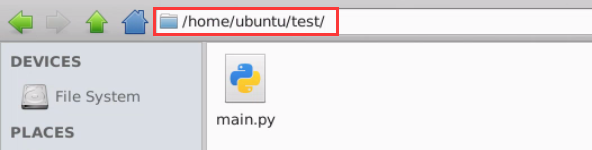
Place the main.py program into the directory path /home/ubuntu/test/.
The directory path can be customized freely without any restrictions.
- Enter the command
vim autopy.shto create the bash script, copy the code below, and press the Shift and Insert keys simultaneously to paste the program. Upon completion, press Esc and enter:wqto save and exit.
vim autopy.sh

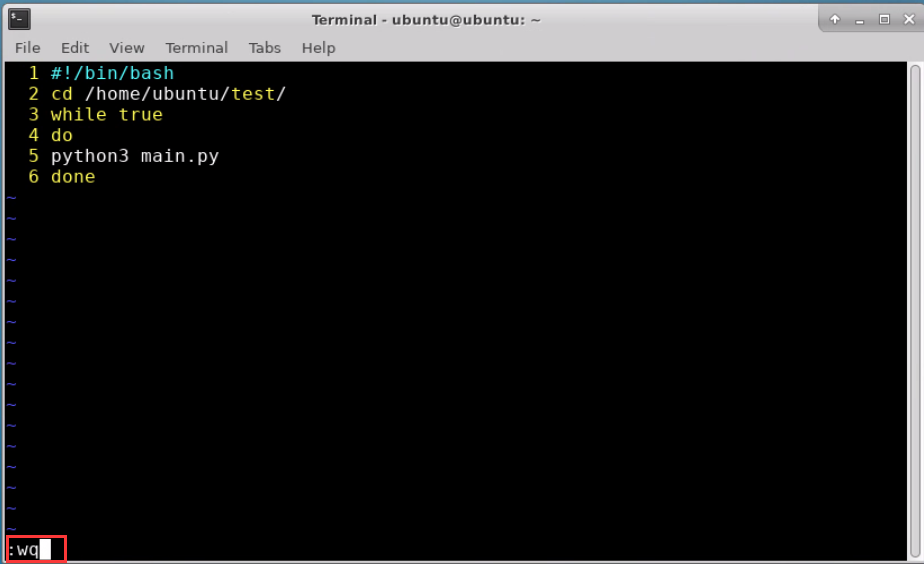
#!/bin/bash
cd /home/ubuntu/test/
while true
do
python3 main.py
done
- Enter the command to grant executable permissions to autopy.sh.
chmod 777 autopy.sh

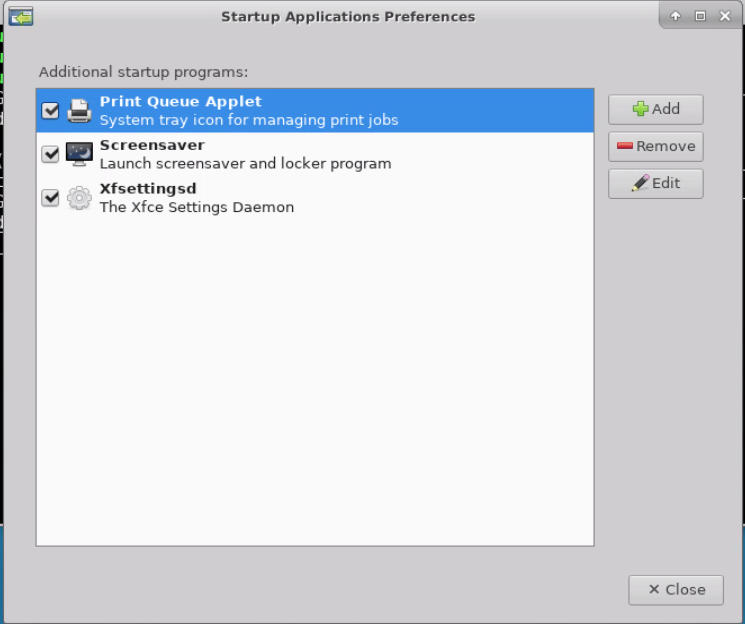
- Enter the command and press Enter, displaying the interface as shown below.
gnome-session-properties

-
Click the Add button and configure the settings as shown below.
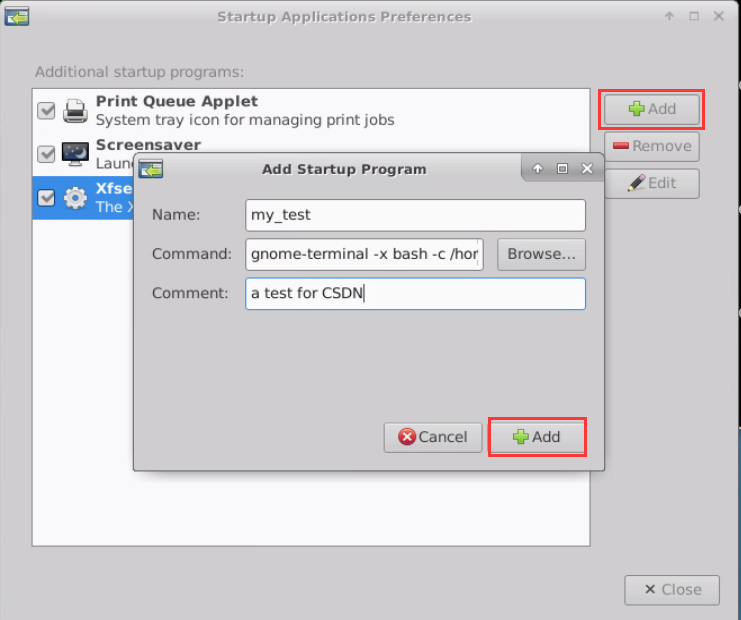
The Name field can be filled according to specific requirements.
The Command field is critical. If the program needs to run in the foreground with the terminal window appearing upon boot, the following command can be entered: gnome-terminal -x bash -c /home/ubuntu/autopy.sh
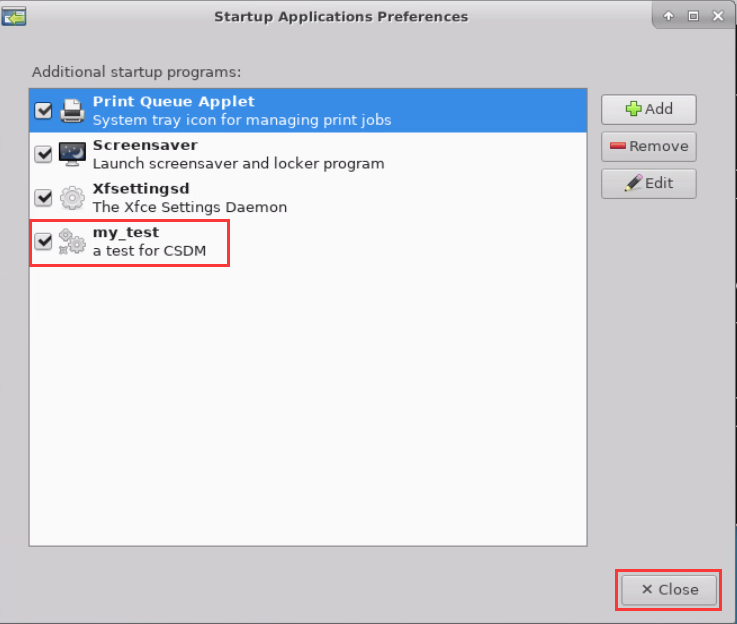
The Comment field can be filled in arbitrarily based on the actual application, followed by clicking Add and then clicking the Close button.
- Enter the command to restart the system.
sudo reboot

- After rebooting, once the robotic arm returns to its initial posture, it will begin to move and track the red color block.
Before starting the color tracking feature, verify the color thresholds to ensure that the target color threshold settings are configured successfully.
Once the experiment begins, ensure that no objects with the same or similar colors to the target tracking color appear within the field of view besides the designated color block.
After launching the feature, it is recommended to operate the system on the provided map or a pure white background. Running the experiment on a dark background may cause operational anomalies.