Using this template is recommended — you may also edit it freely, but you must fully describe your product and the problem (at least: product name, version, and problem description).
Product and Purchase
- Product model: Hiwonder Ainova Pro
- SKU or kit name: RM-HIWO-03F
- Purchase channel: RobotShop
- Controller board: AiNova CoreX controller board ESP32-based
Software and Environment
- Operating system: Windows
- Connection method: USB
- Software version: WonderCode V2.2.8
- Firmware version: 1.15.0, Build: V1.15-57-g8a325e526
- Image version: unknown
- Tutorial step: unkown
Issue Description
- The fan won’t move. Instead of troubleshooting the whole code with the facial recognition, I have tried to just get the fan to work. There is power to the fan.
- There are no errors.
What You Have Tried
- Tried the AI Fan.sb3 downloaded from Hiwonder.
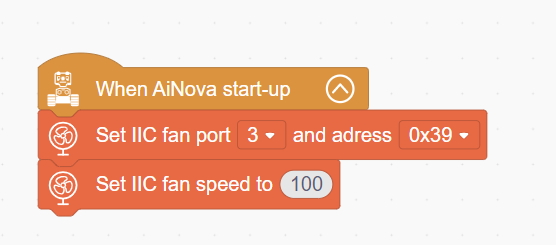
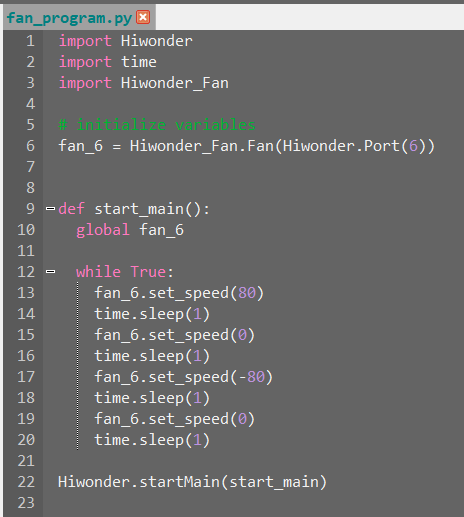
- I also tried to just start the fan with the attached fan startup code.png below.
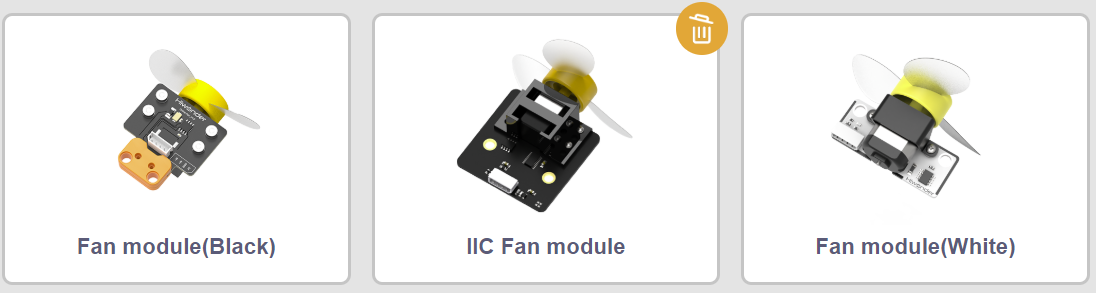
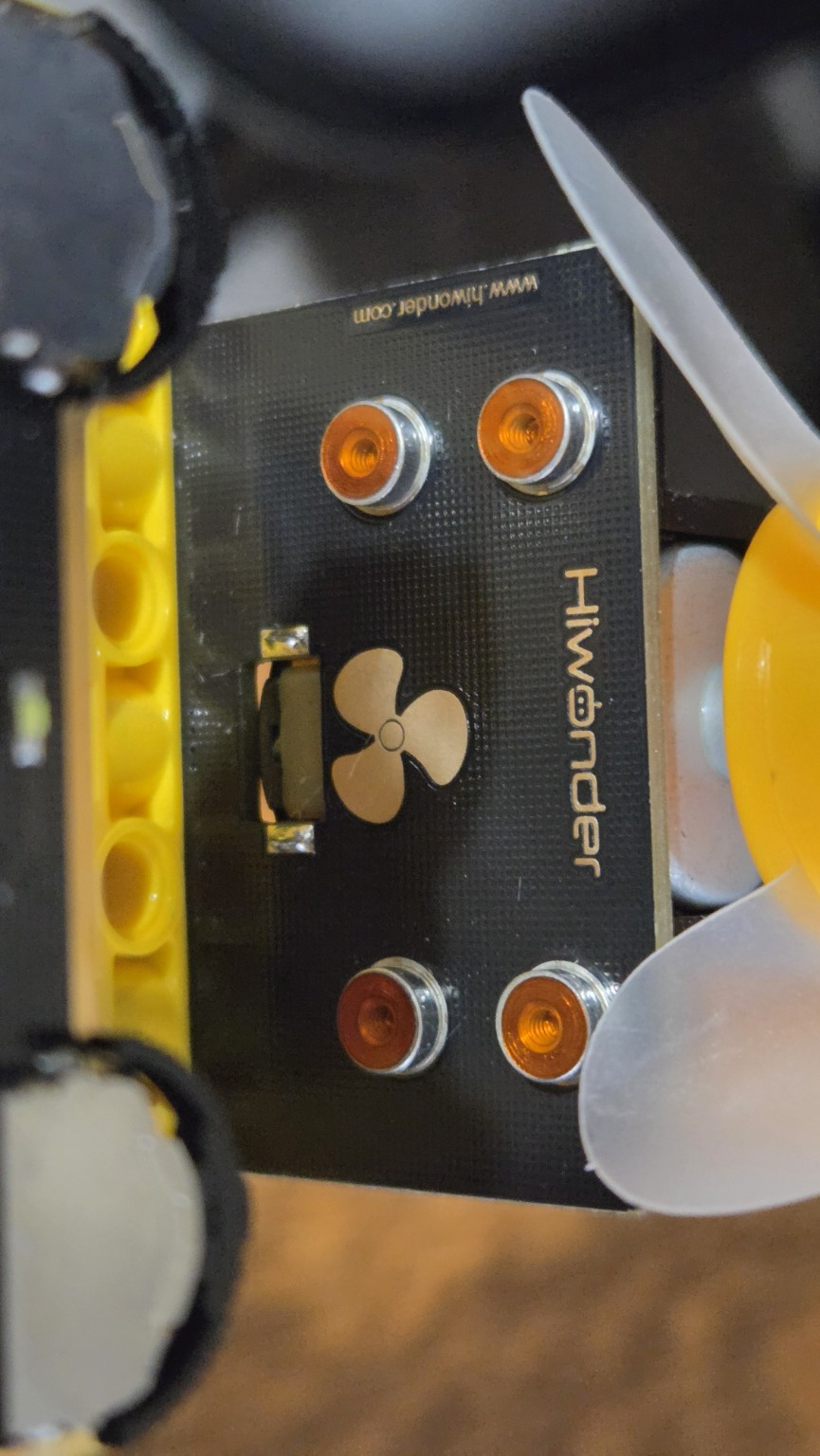
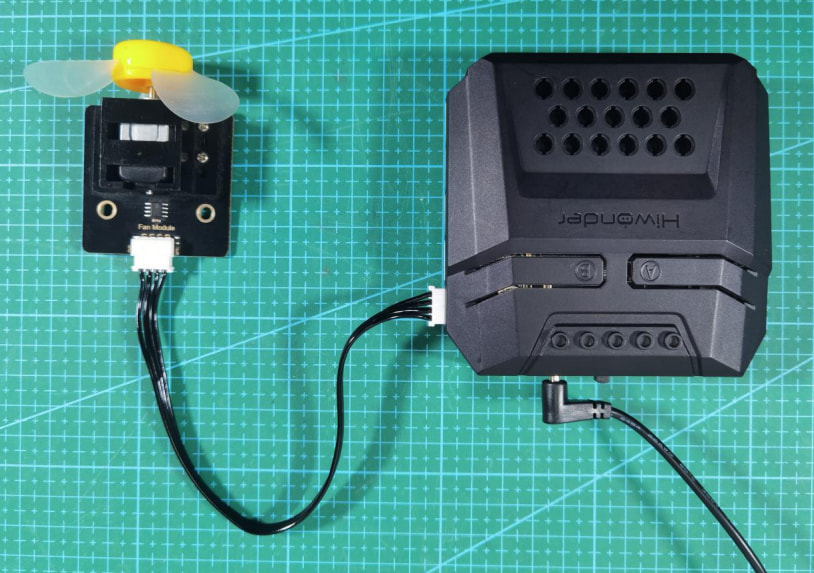
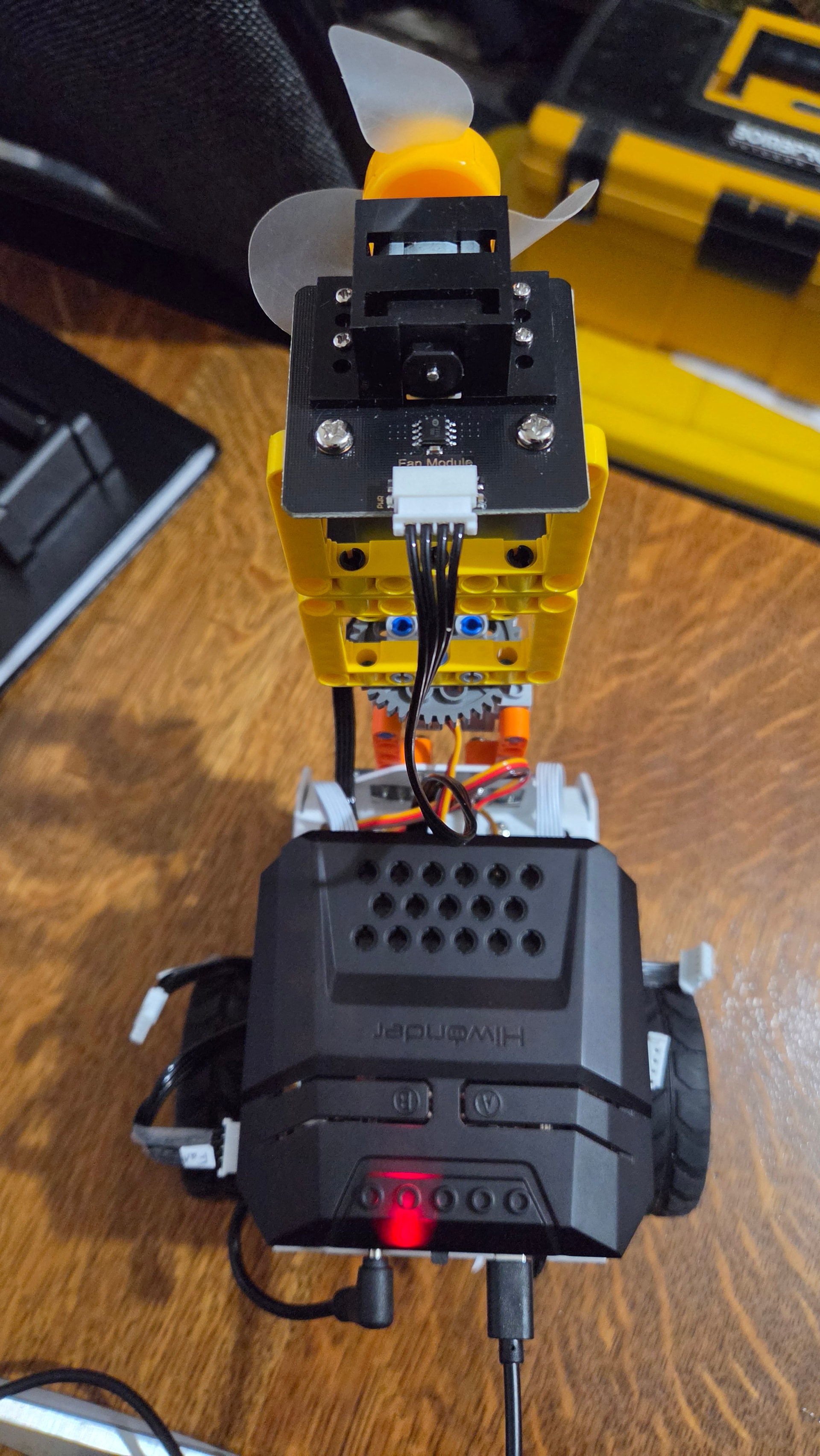
- I also tried the default Fan module (Black) with the code, but it appears I have the IIC Fan module (see attached photos (5. WonderCode Fan options.png), (6. fan1.jpg) and (7. Ainova fan with power.jpg.))
7.
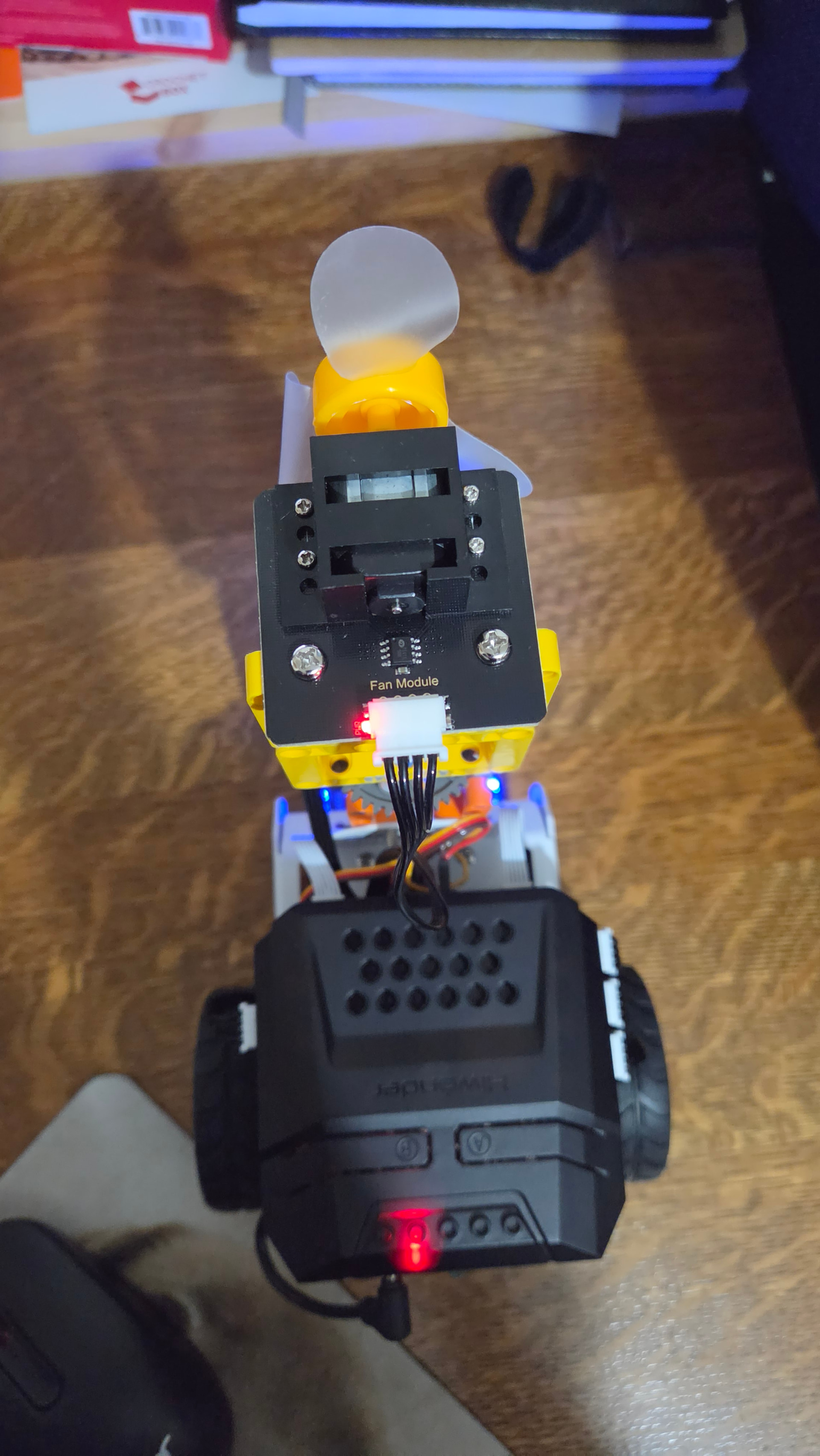
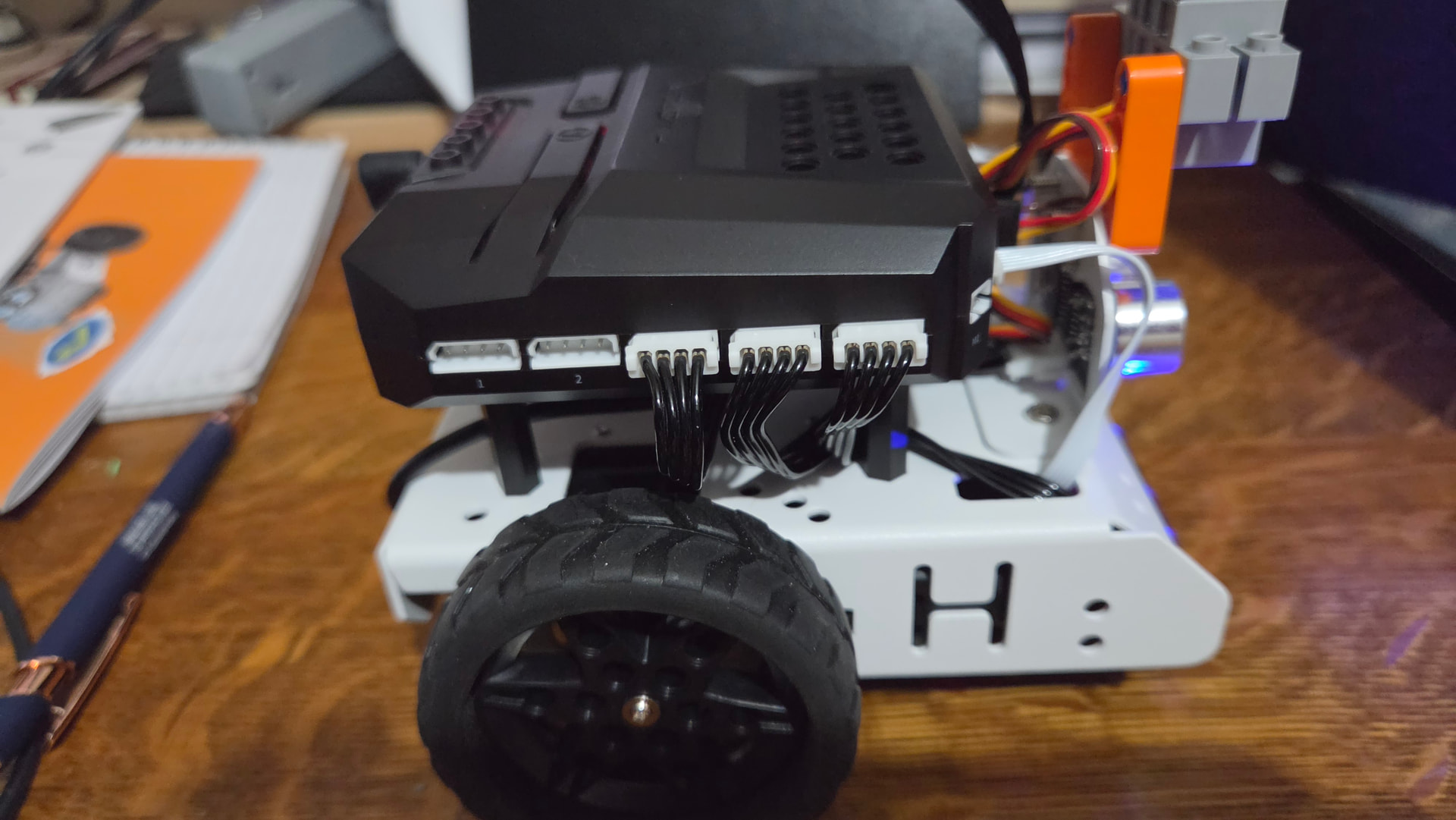
8. Since the IIC fan doesn’t have the option to use port 6, I tried it with the one available - port 3. See photo (9. Ainova wiring - fan to port 3.jpg). I tried just running the fan with the code fan startup code.png. The fan won’t spin.
9.
Additional Notes:
- Looking at the photos of my fan, which WonderCode fan extension and Python library are compatible with the fan supplied in my AiNova kit?
Can you provide me the code to just make the fan run? Once I have it running, I can then try the facial recognition part of the code.
Official support staff are being brought in to help with your fan module issue. If you still need the assistant’s help, you can @ me in this topic. @Hiwonder_Scarlett
Hi, there,
Thank you for providing the detailed information.
You can try the attached fan forward and reverse program file to see if it operates normally.
Fan Program: coreX.sb3 (50.3 KB)
During testing, please ensure that no other sensor modules are connected. We look forward to your reply.
Steps are as follows:
-
Power it using two 3.7V 1200mAh lithium batteries. Connect the fan module to port 6 of the CoreX controller.
-
Connect the CoreX development board to your computer via a USB cable. Open WonderCode and import the code file. Make sure to select the correct port.
-
Click the upload button to upload the program.

-
After the code is successfully uploaded, observe the status of the fan module.
Thank you for your response.
Here’s what I tried:
-
I disconnected all other sensors.
-
I downloaded the code, connected the fan to port 6.
-
Connected the corex board to the computer via USB.
-
Uploaded the program successfully through WonderCode.
-
Nothing happened with the fan (no movement, no light on the fan sensor)
-
Removed the usb connection an turned on the corex (realizing after the power isn’t connected…nothing happened)
-
I tried loading the program again using the same steps above, but now it times out at 5%
-
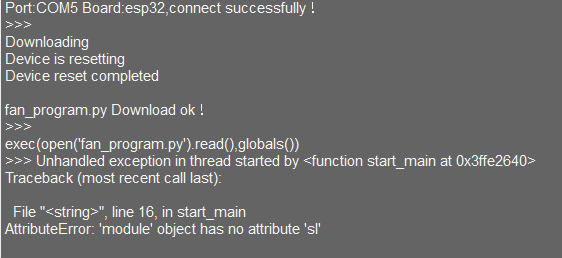
I tried connecting to the corex to the Hiwonder Python editor to see if I could get that to work - copy/paste the wondercode python code to the editor, tried Download and run. Still nothing happened
. No light on the fan sensor or fan movement. See attached results.
-
Please see attached photo (only the fan sensor is plugged into port 6, corex usb to computer connection
Thank you again.